Zalith Launcher APK Architecture Guide – Which Version to Download (2026)
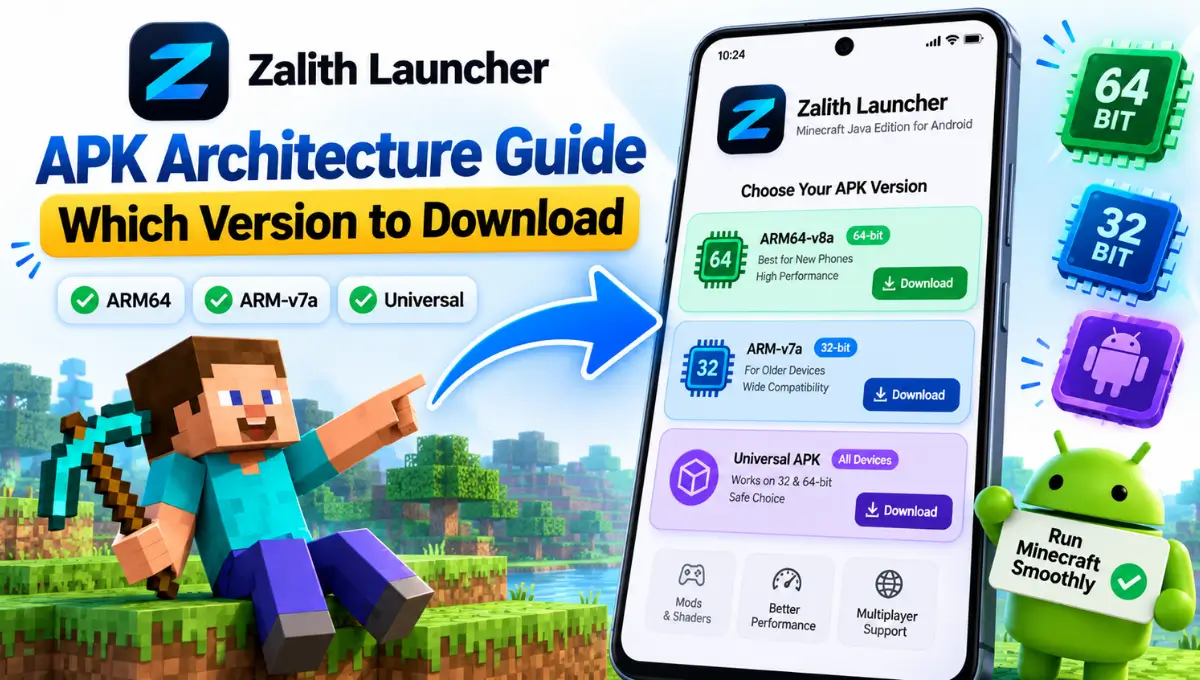
Zalith Launcher is a powerful Minecraft Java Edition launcher for Android that allows players to enjoy Java versions of Minecraft directly on their mobile devices. One thing many users find confusing is choosing the correct APK architecture, downloading the wrong version can cause installation failures, crashes, or poor performance. This guide explains every architecture and helps you install the correct version on your Android device.
📌 Quick Summary
Why the Right Architecture Matters
Android devices run on different processor architectures, and Zalith Launcher builds a separate APK for each one so it can run efficiently on that specific hardware. Installing an APK built for the wrong architecture is one of the most common reasons players see install failures, black screens, or random crashes right after launch. Modern phones almost always use 64-bit ARM64-v8a chips, while older or budget devices may still rely on the 32-bit ARM-v7a architecture. If you are unsure which one your device uses, the Universal APK bundles support for multiple architectures into a single file, trading a slightly larger download size for guaranteed compatibility.
Download Zalith Launcher According to Your Device Architecture
| Version | Architecture | Recommended For |
|---|---|---|
| Zalith Launcher 2.4.9 ARM64-v8a | 64-bit | Modern Android Devices |
| Zalith Launcher 2.4.9 ARM-v7a | 32-bit | Older Android Devices |
| Zalith Launcher 2.4.9 Universal APK | Universal | All Compatible Devices |
ARM64-v8a (64-bit)
Designed for modern Android smartphones and tablets. Offers better performance, smoother gameplay, and improved compatibility. Compatible with Samsung Galaxy S Series, Google Pixel, OnePlus, Xiaomi, Redmi, Poco, Realme, Vivo, Oppo, and most recent Android phones.
Download x86_64
Designed for Android emulators and x86_64 systems delivering stable performance better compatibility faster testing and reliable Minecraft Java gameplay experience.
Universal APK
Includes support for multiple Android architectures. The easiest option for users who do not know their processor type. Compatible with most supported Android devices.
ARM-v7a
Perfect for older Android devices with 32-bit processors offering reliable compatibility stable performance smaller downloads and smooth Minecraft gameplay experience.
Read More: zalith launcher on pc
Device Architecture Comparison
| Architecture | Bit Version | Performance | Recommended For |
|---|---|---|---|
| ARM64-v8a | 64-bit | Excellent | Modern Devices |
| ARM-v7a | 32-bit | Moderate | Older Devices |
| Universal APK | Mixed | Good | All Supported Devices |
Zalith Launcher Download and Installation Manual Process
Installing Zalith Launcher is simple if you follow the correct steps. Make sure you download the APK version that matches your device architecture before starting.
Enable Installation from Unknown Sources
Open Android Settings and navigate to Security settings, allow installation from unknown sources so Android can install APK files downloaded outside the Play Store.
Download the Correct Version
Choose the ARM64-v8a, ARM-v7a, or Universal APK version according to your device architecture and download the file.
Install Zalith Launcher
Open the downloaded APK file and tap Install, wait until Android completes the installation process.
Launch and Grant Permissions
Tap Open and launch Zalith Launcher, grant storage permissions if requested.
Download Required Components
The launcher may download additional files needed to run Minecraft Java Edition.
Select Version and Play
Choose the Minecraft version you want to play, let the launcher prepare game files, then start playing.
Zalith Launcher System Requirements
| Requirement | Minimum | Recommended |
|---|---|---|
| Android Version | Android 8 | Android 11+ |
| RAM | 3 GB | 6 GB+ |
| Storage | 2 GB Free Space | 5 GB+ Free Space |
| Processor | ARM-v7a | ARM64-v8a |
| Internet | Required | High Speed Connection |
Best Performance Settings
Many users want higher FPS and smoother gameplay. These settings usually provide the best results.
| Setting | Recommended Value |
|---|---|
| Render Distance | 6-8 Chunks |
| Graphics | Fast |
| Smooth Lighting | Off |
| Particles | Minimal |
| VSync | Off |
| RAM Allocation | 2-4 GB |
Minecraft Crashes – Common Fixes
Minecraft crashes can occur due to incompatible mods, incorrect settings, or insufficient resources.
| Problem | Solution |
|---|---|
| Game Crashes on Launch | Reinstall Launcher |
| Black Screen | Restart Device |
| Mod Errors | Remove Incompatible Mods |
| Low Memory Crash | Increase RAM Allocation |
| Shader Crash | Disable Heavy Shaders |
⚠️ Safety Tips Before Installing
Note: Downloading APK files requires caution. Only download from trusted sources, avoid modified APK files, scan files before installing, keep backups of your game data, update the launcher regularly, and never grant unnecessary permissions.
Pros and Cons
Zalith Launcher supports Minecraft Java Edition with mod support, shader support, and multiple Minecraft versions, though setup can be confusing at first and performance depends on your device.
Pros
Cons
FAQs
Quick answers about running Launcher 1 and Launcher 2 on PC using an Android emulator.
Conclusion
Zalith Launcher makes it possible to enjoy Minecraft Java Edition on Android with support for mods, shaders, resource packs, and multiple game versions. Choosing the correct architecture is the most important step during installation, ARM64-v8a for modern phones, ARM-v7a for older hardware, or the Universal APK if you’re unsure. Once installed correctly, you can customize Minecraft and enjoy a PC-like experience directly on your mobile device.