Zalith Launcher on iOS: Complete iPhone & iPad Setup Guide (2026)
Zalith Launcher is built as an Android application, but iPhone and iPad users can still enjoy Minecraft Java Edition on iOS through community sideloading methods built on the same PojavLauncher engine that powers Zalith. Many players search for “Zalith Launcher iOS download” hoping to find a simple App Store install, only to discover that the process works a little differently on Apple devices compared to Android. That does not mean the experience is worse — once configured correctly, Minecraft Java on iPhone or iPad can run just as smoothly as on a modern Android phone, complete with mods, resource packs, shaders, and online multiplayer.
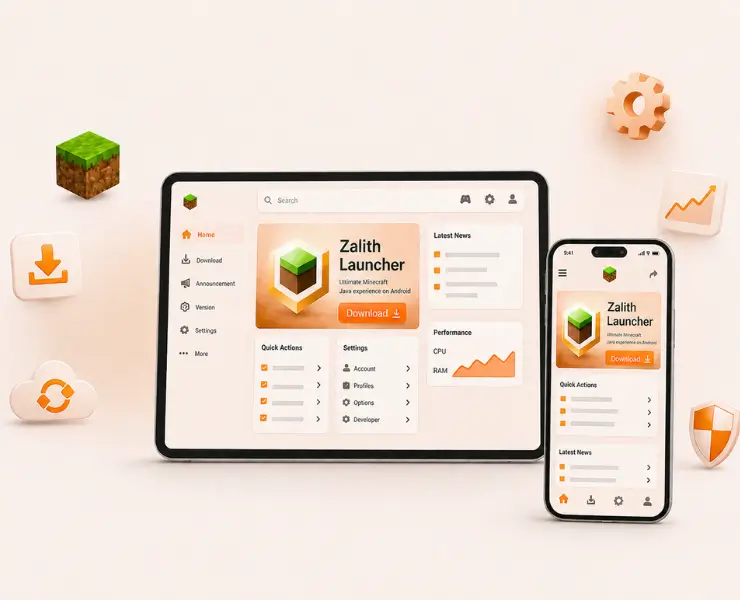
⚠️ Important: Zalith Launcher is developed as an Android-native project and is not officially published on the Apple App Store. “Zalith Launcher on iOS” refers to community sideloading setups that use the same PojavLauncher core technology. Always download IPA files only from trusted, verified sources.
What Is Zalith Launcher on iOS?
Zalith Launcher itself is an open-source Android app that lets players run Minecraft Java Edition on their phone or tablet. There is no official Zalith build for iOS from the original GitHub team. Instead, the iOS community relies on the PojavLauncher engine — the same underlying technology Zalith Launcher is built on — packaged as an IPA file and sideloaded onto iPhone or iPad using tools like AltStore, TrollStore, or Sideloadly. The result is a Minecraft Java experience with a similar interface, version switching, mod support, and touch controls, running natively on Apple hardware without jailbreaking.
It’s worth understanding why this gap exists in the first place. Apple’s App Store guidelines historically restricted apps that download and execute additional executable code, which is exactly how a Java-based game launcher works — it fetches game assets and libraries after installation and runs them through a Java Virtual Machine. Android’s more open distribution model made it far easier for Zalith Launcher and similar Java launchers to publish directly as APK files. On iOS, developers have had to work around these restrictions using enterprise or ad-hoc signing certificates distributed through sideloading tools, rather than the standard App Store review process.
A Brief History of PojavLauncher on iOS (Zalith Launcher)
PojavLauncher started as an Android-only project years before any iOS build existed. As demand grew from iPhone and iPad owners who wanted the same experience, community developers ported the core engine to iOS using open-source JVM implementations adapted for Apple’s ARM architecture. Zalith Launcher later emerged as a modernized fork of this same lineage, first improving the Android experience with a cleaner interface and better memory management, and now indirectly benefiting the iOS side of the community since both projects share compatible game file structures, version manifests, and mod folder layouts. This shared history is why an IPA built from the PojavLauncher codebase can offer a Zalith-like experience on iOS even without an official Zalith release.
| Property | Details |
|---|---|
| App Type | Minecraft Java Edition Launcher (PojavLauncher-based) |
| Official App Store Availability | Not officially published |
| Installation Method | Sideloading via AltStore, TrollStore, or Sideloadly |
| Jailbreak Required | No (TrollStore requires a compatible iOS version, not a jailbreak) |
| iOS Version Required | iOS 14 or Higher (varies by tool) |
| File Format | .ipa |
| Core Engine | PojavLauncher / MobileGlues rendering |
| License | Open Source |
View More: Zalith launcher on pc
Sideloading Tools Compared
Three main tools are used to sideload the launcher IPA on iOS. Each has different requirements and trade-offs, and choosing the right one depends on whether you have regular access to a computer, which iOS version your device is running, and how much manual maintenance you’re willing to do each week. Below is a side-by-side comparison, followed by a closer look at what makes each option different.
| Tool | Requires | Re-sign Interval | Best For |
|---|---|---|---|
| AltStore | PC or Mac + AltServer running | Every 7 days (free Apple ID) | Most reliable, beginner-friendly |
| TrollStore | Compatible iOS/iPadOS version | Permanent install, no re-signing | Users on a supported firmware version |
| Sideloadly | PC or Mac (Windows/macOS) | Every 7 days (free Apple ID) | Users who prefer a one-time desktop tool |
AltStore remains the most widely recommended option because of its active development and large support community. It installs a small companion app called AltServer on your computer, which communicates with your iPhone or iPad over the same Wi-Fi network to periodically refresh the app’s signature before it expires. This makes it convenient for anyone who keeps their computer nearby and turned on regularly.
TrollStore is the most convenient long-term option when it works, since apps installed through it do not expire after seven days like standard sideloaded apps. However, it depends on exploiting specific vulnerabilities in certain iOS and iPadOS versions, so it is only available on a limited set of firmware releases at any given time. Before choosing this route, check whether your exact iOS version is currently supported.
Sideloadly works similarly to AltStore but as a standalone desktop application without a persistent background service. Some users prefer it because it feels more like a one-time installer, though it still requires a fresh USB or Wi-Fi connection to your computer each time the certificate needs renewing.
Step-by-Step Setup Guide
Follow these steps in order to get Minecraft Java Edition running smoothly on your iPhone or iPad.
Install a Sideloading Tool
Download AltStore, TrollStore, or Sideloadly on your PC or Mac and install it following the tool's official setup wizard.
Trust Your Developer Profile
On your iPhone or iPad, go to Settings > General > VPN & Device Management and trust the certificate created during installation.
Download the Launcher IPA
Get the PojavLauncher/Zalith-based IPA file from a verified source and save it to your device or connected computer.
Sideload the App
Open your chosen tool, select the IPA file, and install it. AltStore and Sideloadly require your device to stay on the same Wi-Fi network as your computer.
Enable JIT Compilation
Launch the app once through your sideloading tool's JIT-enable option, or use a Wi-Fi triggered JIT tool, so Java can run at full speed.
Sign In & Verify Minecraft
Open the launcher and log in with your Minecraft/Microsoft account to verify you own a valid copy of Java Edition.
Choose a Minecraft Version
Select the Java Edition version you want to play from the version list and let the launcher download the required files.
Adjust Touch Controls & Play
Customize the on-screen control layout, tweak Java memory settings if needed, and tap Play to start your game.
Why JIT Compilation Matters
Apple blocks Just-In-Time (JIT) compilation for regular apps, which normally forces Java to run in a much slower interpreted mode. Without JIT enabled, Minecraft Java Edition on iOS can drop to single-digit FPS. Enabling JIT through your sideloading tool lets Java compile code at runtime the way it does on PC and Android, often taking performance from 5–10 FPS up to 60+ FPS on newer devices.
AltStore JIT
Enable JIT directly from the AltStore app on your device before opening the launcher.
Wi-Fi Triggered JIT
Some tools enable JIT automatically the moment your device connects to Wi-Fi, reducing manual steps.
TrollStore Permanent JIT
On supported firmware, TrollStore installs keep JIT enabled permanently without daily setup.
Device Requirements
| Component | Minimum | Recommended |
|---|---|---|
| Device | iPhone 8 / iPad (6th gen) | iPhone 12 or newer / iPad Pro |
| iOS / iPadOS Version | iOS 14 | iOS 16 or Higher |
| Storage | 2 GB Free Space | 5 GB Free Space |
| RAM | 3 GB | 6 GB or More |
| Computer for Sideloading | Windows/Mac (for AltStore/Sideloadly) | Not required if using TrollStore |
Common Problems & Fixes
Find quick solutions for the most common Zalith Launcher issues including crashes installation errors login problems lag and performance issues. Follow these simple fixes to get the launcher running smoothly again.
App Won't Open / "Untrusted Developer" Error
Extremely Low FPS
App Disappears After 7 Days
Pros & Cons
Pros
Cons
FAQs
Quick answers about running Zalith Launcher on iPhone and iPad.
Conclusion
While there is no official Zalith Launcher app on the App Store, iPhone and iPad users can still enjoy the full Minecraft Java Edition experience by sideloading a PojavLauncher-based build using AltStore, TrollStore, or Sideloadly. Enabling JIT compilation is the key step that turns an unplayable frame rate into smooth gameplay, and once set up, you get version switching, mod support, and multiplayer just like on Android or PC.
Follow the step-by-step guide above, keep your sideloading certificate refreshed, and always download launcher files only from trusted, verified sources to keep your device safe.