Best Resource Packs to Use with Zalith Launcher
Open the default Minecraft world on any phone and it looks exactly the way it did in 2011. Flat green grass, blocky water, a pig that looks like four cubes glued together. Nothing wrong with that look, plenty of players genuinely prefer it, but the moment you realize a single zip file dropped into the right folder can turn that same world into something closer to a painting, it is hard to go back.
Resource packs are the easiest upgrade Zalith Launcher offers and also the most misunderstood. Some players think they need a powerful PC to use anything beyond the default look. Others assume every pack works the same way and get confused when a 512x realism pack turns their phone into a slideshow. Neither assumption holds up once you understand what a resource pack is actually doing to your device while it runs.
This guide walks through the real mechanics behind resource packs, how to install and manage them properly inside Zalith Launcher, which packs are actually worth your storage space in 2026, and how to avoid the lag, crashes, and missing textures that trip up almost every first time user.
What a Resource Pack Is Actually Changing
A resource pack is just a folder of replacement files zipped together, nothing more mysterious than that. Every block, mob, item, sound, and font in Minecraft points to a source image or audio file, and a resource pack simply swaps those files for its own versions without touching a single line of the game’s actual code.
That is why resource packs are treated as safe by default. They cannot add new blocks, cannot change how redstone behaves, and cannot break your world save, because nothing about the underlying game logic is being edited. All a pack does is tell Minecraft to draw a nicer image where the game used to draw a plain one.
Zalith Launcher reads resource packs the same way any Java Edition client does, since the launcher is just a wrapper that lets Java Minecraft run on Android. Drop a compatible zip file into the resourcepacks folder, and the launcher’s file manager picks it up instantly, no conversion or renaming required. The bigger question is never whether a pack will load, it is whether your device has enough memory to keep it running smoothly, and that comes down almost entirely to resolution.
Also Read: Zalith Launcher Latest Update On Android— What’s New
Installing a Resource Pack in Zalith Launcher
Installing a resource pack in Zalith Launcher is quick and straightforward. Download a compatible resource pack then import it through the launcher or Minecraft settings. Once enabled the new textures are applied instantly giving your game a fresh look with improved visuals while maintaining smooth performance on supported Android devices.
Download the pack as a zip file
Grab the resource pack from its official source and keep it as a compressed zip. Do not extract it, Minecraft reads resource packs in their zipped form.
Open the built-in file manager
From the Zalith Launcher home screen, tap the file manager icon to browse your game directory without needing a separate app.
Navigate to the resourcepacks folder
Head into .minecraft, then resourcepacks. If the folder is missing, launch the game once first so Minecraft creates it automatically.
Copy or move the zip file in
Place the downloaded zip directly inside the resourcepacks folder, leaving it exactly as it was downloaded, no renaming needed.
Launch Minecraft and open Options
Start the game through your usual account, then go to Options, followed by Resource Packs, where your new pack will appear under Available.
Select it and apply
Tap the pack to move it into the Selected column, confirm, and let the game reload textures. The change applies instantly, no restart required.
Best For Low End and Mid Range Phones
Only For Flagship Devices
The Best Resource Packs for Zalith Launcher, Compared
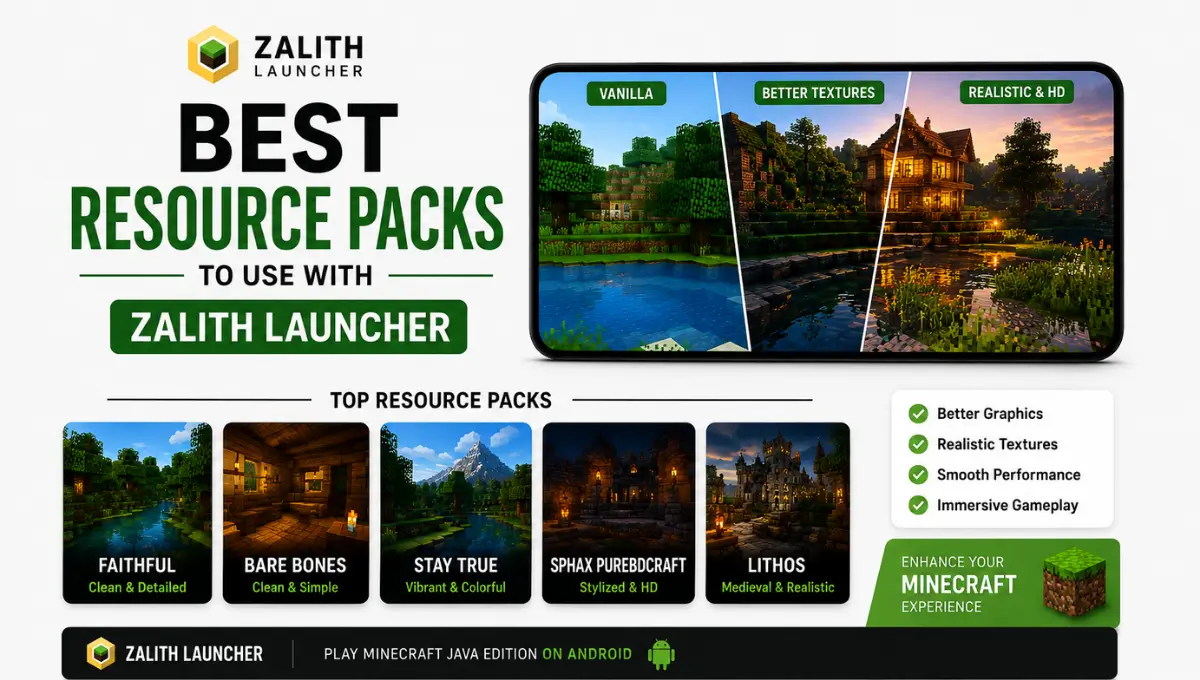
Zalith Launcher Every pack on this list is actively maintained and confirmed working with the resourcepacks folder inside Zalith Launcher, so the only real decision left is which resolution your phone can carry.
| Resource Pack | Resolution | Style | Best Suited For |
|---|---|---|---|
| Faithful | 32x / 64x | Sharper vanilla, same art style | Almost every device, safest overall pick |
| Bare Bones | 16x | Minimalist, flat, cartoon-like | Old phones and low storage builds |
| Mizuno’s 16 Craft | 16x | Soft, warm, Japanese-inspired | Cozy survival and cottagecore worlds |
| Patrix | 64x to 256x | Photorealistic with PBR support | Flagship devices paired with shaders |
| Fresh Animations | N/A, animation only | Fluid, lifelike mob movement | Any device, stacks with other packs |
| Conquest | 32x custom models | Medieval RPG overhaul | Building and roleplay servers |
A 256x pack does not just take up more space on your phone, it forces the game to hold much larger images in memory while you play, which is usually what causes stutter, not the launcher itself.
Select more than one pack at once and Minecraft layers them, so a texture pack combined with an animation pack like Fresh Animations works together instead of one replacing the other.
Zalith Launcher Combining Resource Packs With Shaders and Mods
Resource packs, shaders, and mods all live in separate folders and do separate jobs, which is exactly why they layer so well together inside Zalith Launcher. A resource pack replaces what things look like, a shader pack changes how light and shadow behave around those textures, and a mod changes what the game is actually capable of doing.
Pairing a PBR ready pack like Patrix with a shader such as Complementary or SEUS is where the real transformation happens. The resource pack supplies the detailed normal and specular maps, and the shader reads those maps to produce reflections, dynamic shadows, and realistic water, something neither one can do convincingly alone.
Mod loaders do not care which resource pack is active either. Fabric, Forge, and NeoForge all pull their assets from the resourcepacks folder the same way vanilla Minecraft does, so switching from a modded profile to a vanilla one keeps your chosen pack fully intact. The only real limit is your device’s memory budget, since running a high resolution pack, a heavy shader, and a large modpack all at once is where even flagship phones start to struggle.
Fixing the Problems People Actually Run Into
Zalith Launcher Almost every resource pack complaint traces back to one of a few simple causes, and knowing the mechanism behind resource packs makes the fix obvious every time.
Purple and black checkerboard textures usually mean the pack was built for a different Minecraft version than the one you are running. Packs list a supported version range on their download page, so double check that range before assuming the launcher itself is broken.
A pack that will not show up under Available Resource Packs almost always means it was extracted before being placed in the folder. Keep the file zipped exactly as downloaded, Zalith Launcher and Minecraft both expect a single compressed archive, not a loose folder of images.
Sudden lag or crashing after switching packs is a memory issue, not a launcher bug. Drop down to a lower resolution version of the same pack, close background apps, or increase the allocated memory in the launcher’s settings if your device supports it.
Sounds not changing even though a sound pack is selected usually means another pack above it in the selected list is overriding those specific files. Remember that packs higher in the list take priority, so drag the sound pack above anything else touching audio.
FAQs
Quick answers to the questions that come up most about resource packs on Zalith Launcher.
Conclusion
Resource packs are the simplest way to make Minecraft feel new again without touching a single mod file or risking your world save. Once you understand that a pack is only swapping images and sounds, not rewriting game logic, the whole system stops feeling risky and starts feeling like exactly what it is, a safe and reversible style change.
The only real decision left is matching resolution to hardware. Faithful, Bare Bones, and Mizuno’s 16 Craft cover almost every device without a second thought, while Patrix and other PBR heavy packs are worth the storage only if your phone can actually push the frames to show them off.
Whichever direction you go, the resourcepacks folder inside Zalith Launcher makes switching between styles a matter of seconds, so there is very little reason not to try a few and see which one makes your world feel like yours.