Zalith Launcher System Requirements — Minimum vs Recommended
Before installing Zalith Launcher, the single biggest factor in how well it runs isn’t the app itself, it’s your phone’s hardware. The launcher can technically boot on very old devices, but “runs” and “runs well” are two very different experiences once mods, shaders, and multiplayer come into the picture.
Unlike PC gaming where you can usually upgrade a graphics card or add RAM, your phone’s specs are fixed the day you buy it. That makes knowing exactly where your device falls, minimum, mid-range, or fully recommended, far more important than it would be on desktop.
This guide separates the bare minimum needed to get the app open and playable from the specs that actually deliver a smooth, mod-friendly experience, walks through how different chipsets behave, and gives you a clear way to check your own device before you download anything.
Why Hardware Matters More Here Than on PC
Minecraft Java Edition wasn’t originally built for phones. It was designed around a full desktop JVM, a dedicated graphics card, and effectively unlimited RAM by mobile standards. Zalith Launcher bridges that gap by translating Java’s rendering calls into something your phone’s GPU can actually process, but that translation layer itself needs processing power to run.
This means the hardware requirements aren’t just about running Minecraft, they’re about running Minecraft through a compatibility layer on top of Android itself, which is already using a slice of your RAM and CPU in the background. A phone that looks powerful on paper for normal apps can still struggle here if its GPU driver doesn’t support the renderer Zalith Launcher defaults to.
Minimum vs Recommended at a Glance
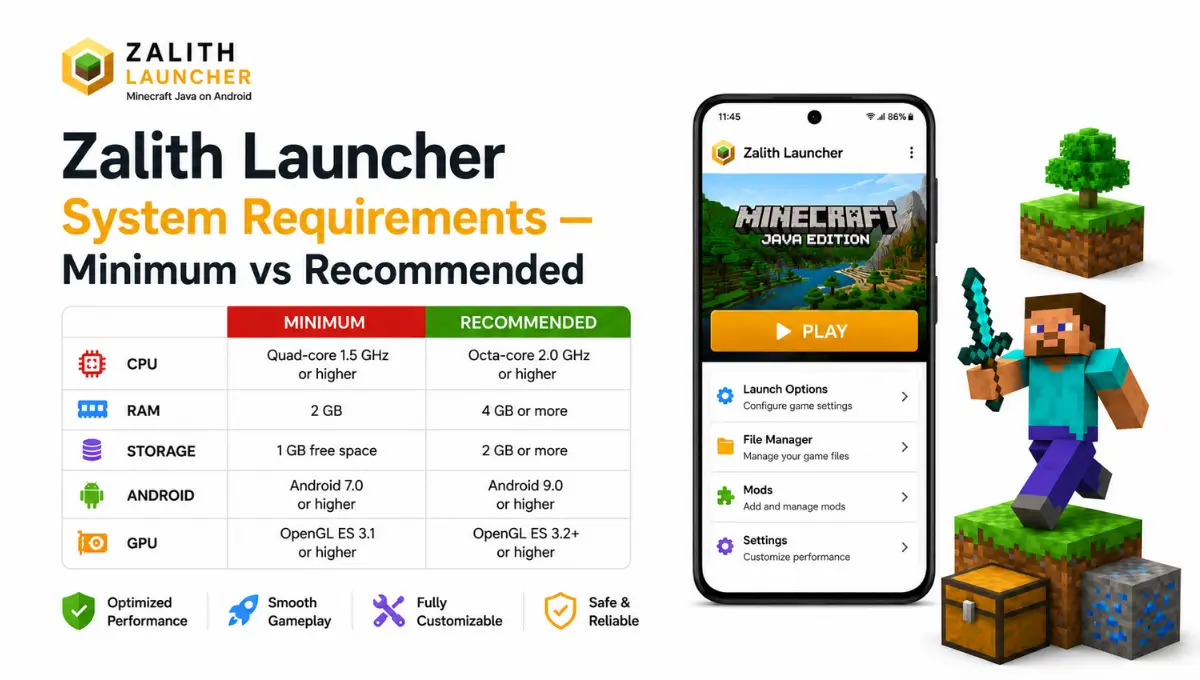
Before installing Zalith Launcher it is important to understand the difference between the minimum and recommended system requirements. The minimum specifications allow Zalith Launcher to run but you may experience lower FPS slower loading times and limited support for shaders or large modpacks.
Minimum Requirements
Recommended Specs
Device Tiers Explained
Not every phone that “can run it” will run it the same way. Here’s roughly what to expect at each hardware tier.
2GB–3GB RAM
Vanilla gameplay only, low render distance, expect occasional stutters and longer world load times.
4GB–6GB RAM
Handles light mods and simple shaders comfortably, stable frame rates at medium render distance.
8GB+ RAM
Heavy modpacks, shader packs like BSL or Complementary, and higher render distances run smoothly.
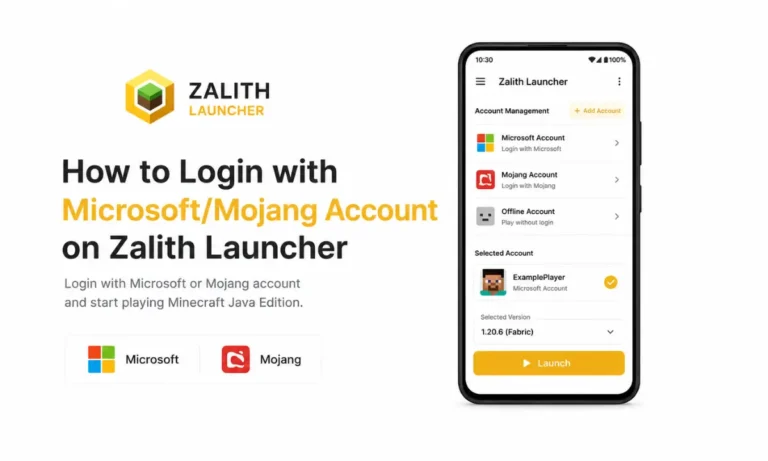
Read More: How to Login with Microsoft/Mojang Account on Zalith Launcher
How Different Chipsets Actually Perform
Many people focus only on RAM but your device’s chipset and GPU are just as important for Zalith Launcher. Two phones with the same amount of RAM can deliver very different performance depending on their processor and graphics support. A device with proper Vulkan support usually offers smoother gameplay better FPS and faster rendering.
| Chipset Family | Typical Performance | Best Renderer Choice |
|---|---|---|
| Snapdragon 6-series and below | Stable vanilla play, light mods with reduced settings | OpenGL ES or GL4ES |
| Snapdragon 7 and 8-series | Smooth modded play with shaders at medium-high settings | Vulkan |
| MediaTek Dimensity 700–900 series | Comparable to mid-tier Snapdragon, generally reliable | Vulkan where supported, OpenGL fallback otherwise |
| MediaTek Helio (older, budget) | Vanilla only, expect frame drops with any mods | OpenGL ES |
| Exynos flagship chips | Good raw performance, occasional driver-specific Vulkan issues | Try Vulkan first, fall back to OpenGL if unstable |
RAM Allocation Guide in Zalith Launcher’s
How much of your total RAM to actually hand over to Minecraft inside Zalith Launcher’s settings, and why matching this correctly matters more than simply picking the highest number available.
| Total Device RAM | Suggested Allocation | Best For |
|---|---|---|
| 2GB–3GB | 1GB–1.5GB | Vanilla survival, no mods |
| 4GB | 1.5GB–2GB | Light resource packs, no heavy shaders |
| 6GB | 2.5GB–3.5GB | Fabric/Forge mods, basic shaders |
| 8GB+ | 3GB–4GB | Modpacks with shaders and higher render distance |
Never assign more than roughly 60 to 70 percent of your total RAM to Minecraft. Leaving nothing for Android itself causes more crashes than it prevents.
A device meeting the RAM requirement can still show a black screen if its GPU doesn’t support the selected renderer. Switch between OpenGL, Vulkan, and GL4ES if this happens.
Storage and Android Version Notes
As you install more mods shaders and resource packs Zalith Launcher requires additional storage space. Keeping enough free storage improves loading speed and reduces crashes. Your Android version also affects which rendering backends are available so using a newer Android release provides better compatibility performance and graphics support.
| Category | Minimum | Recommended |
|---|---|---|
| Android Version | Android 8.0 (API 26) | Android 11 or higher |
| Free Storage | 1.5GB–2GB | 5GB or more |
| Processor | Any 64-bit ARM chipset | Snapdragon 6-series or better |
| Renderer | OpenGL ES / GL4ES | Vulkan-capable GPU |
How To Check Your Own Device Before Installing Zalith Launche
A few minutes of checking now saves you from a frustrating first launch later. Follow these steps to confirm exactly where your phone stands against the requirements above.
Check Your Android Version
Go to Settings, then About Phone, then Android Version. Anything below Android 8.0 means Zalith Launcher won’t install at all.
Confirm Total and Available RAM
Under Settings, About Phone, or a dedicated device info app, check your total RAM alongside how much is typically free when idle.
Look Up Your Chipset Model
Search your exact phone model plus “chipset” to find whether it uses Snapdragon, MediaTek, or Exynos, and which generation.
Free Up Storage Ahead of Time
Clear space so you have at least 5GB free before installing, since the initial Java runtime and version download need breathing room.
Start With Default Settings First
Install and launch with default RAM allocation and renderer before changing anything, so you have a working baseline to compare against.
Getting the Most Out of a Below-Recommended Device(Zalith Launcher)
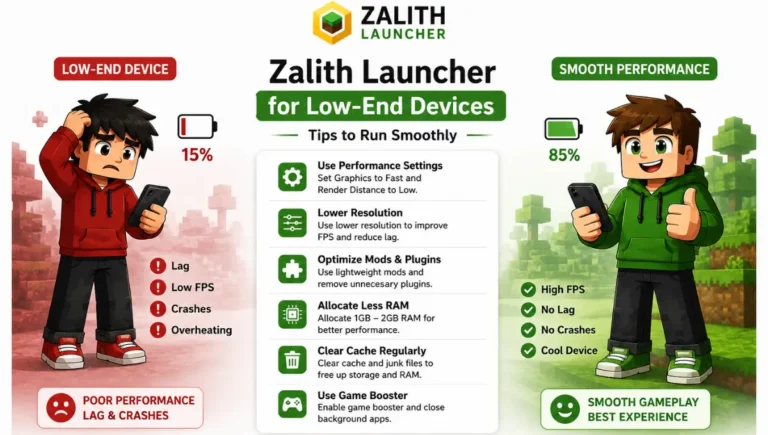
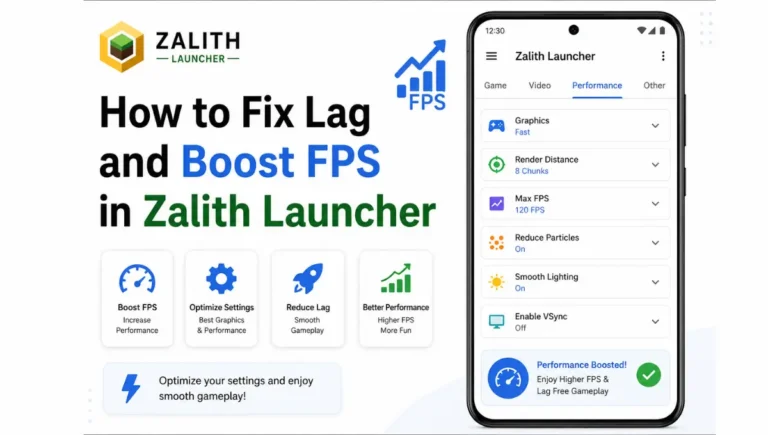
If your phone sits closer to the minimum than the recommended spec, that doesn’t mean you can’t play, it just means a few settings need adjusting before you start. Lower the render distance to 6 or 8 chunks, disable entity shadows, and set graphics quality to Fast rather than Fancy. These three changes alone recover a noticeable amount of frame rate on budget hardware.
Optimization mods also help more than raw hardware upgrades ever could on older devices. Sodium for Fabric or Embeddium for Forge can meaningfully improve frame rates in vanilla worlds without any visual sacrifice, and both work well even on 2GB to 3GB RAM devices as long as they’re paired with a light modpack rather than a heavy one.
Keeping your device cool also matters more than people expect. Thermal throttling kicks in during long sessions on budget chipsets, quietly reducing performance the longer you play. Avoid direct sunlight, close unused background apps, and give your phone breathing room rather than playing while it’s charging in a case.
FAQs
Quick answers about running Zalith Launcher on different devices.
Conclusion
Zalith Launcher’s minimum requirements will get the app running on almost any modern Android phone, but the recommended specs are what actually make Minecraft Java Edition feel good to play on mobile. Chipset matters just as much as RAM, since a strong Vulkan-capable GPU can outperform a phone with more memory but weaker rendering support.
If you use a budget Android device keep your settings simple for the best Zalith Launcher performance. Play vanilla worlds reduce the render distance and use optimization mods like Sodium or Embeddium. If your phone has at least 6 GB of RAM and a Vulkan compatible chipset you can enjoy mods shaders and smooth gameplay with little or no extra configuration.