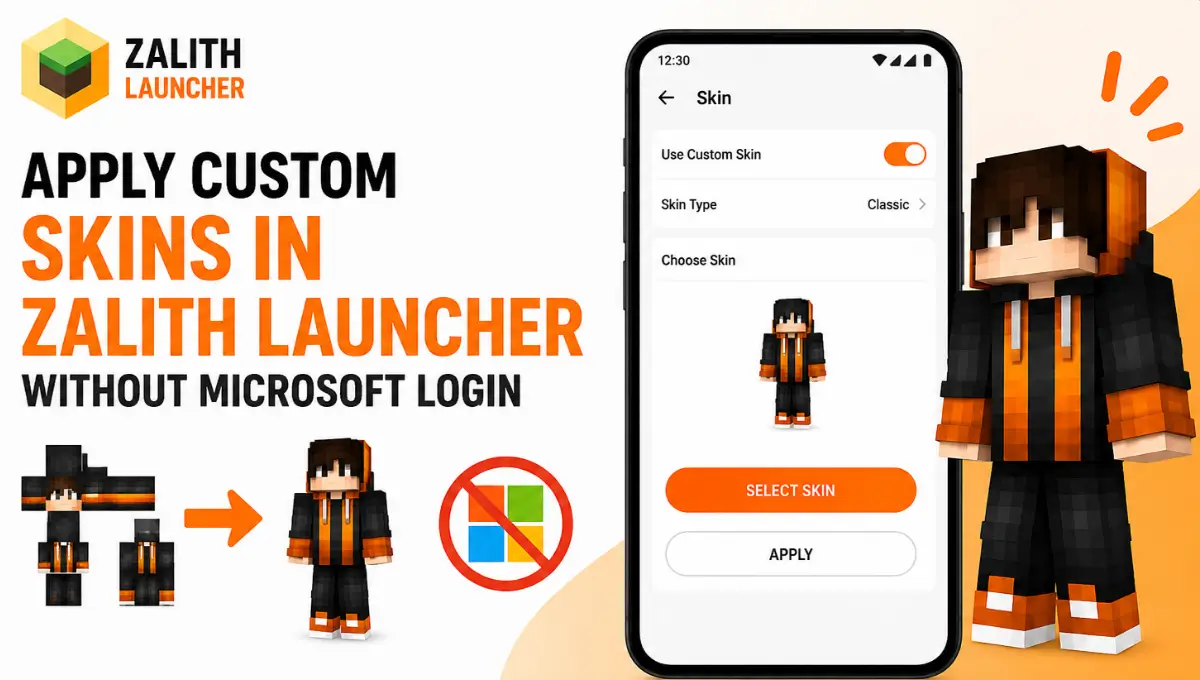
Apply Custom Skins in Zalith Launcher Without Microsoft Login
You do not need a Microsoft account, a paid copy of Java Edition, or an internet connection at the exact moment you play to walk around Minecraft in a skin you actually chose yourself. Zalith Launcher builds a small local authentication server into the app itself and that server is what lets an Offline account carry a custom skin the same way a genuine Microsoft account would. This guide breaks down exactly how the feature works, walks through the setup from start to finish, covers the file rules Minecraft enforces on every skin, and fixes the mistakes that stop a new skin from showing up in game.
Why Offline Skins Even Work Without Microsoft
Normally Minecraft pulls your skin from Mojang’s own servers, and that only happens once the game has verified you own a paid account. Offline accounts skip that verification step entirely, so on paper they should never be able to show a custom skin at all. Zalith Launcher gets around this with something called an offline Yggdrasil API server, a small authentication service that runs locally on your own device instead of on Mojang’s infrastructure.
When you launch the game on an Offline account, the Zalith launcher quietly points Minecraft toward this local server instead of Mojang’s real one, using a system called Authlib-Injector to redirect the request. The local server then hands back whatever skin file you selected, and Minecraft renders it exactly as if it came from an official source. Older versions of the launcher tried to fake this with a generated resource pack, but that approach broke on many versions and stopped working entirely after 1.19.3, which is why the current Yggdrasil method replaced it.
Also Read: How to Login with Microsoft/Mojang Account on Zalith Launcher
Two Ways Zalith Launcher Handles Custom Skins
The Zalith launcher supports skin changes on both Microsoft and Offline accounts, but the process behind each one is completely different. The table below breaks down what to expect from each path.
| Account Type | Skin Source | Internet Required | Visible to Other Players |
|---|---|---|---|
| Microsoft | Official Mojang skin API | Yes, at login and skin upload | Yes, on any server |
| Offline (local skin) | Local file via offline Yggdrasil server | No | Only on servers with matching auth setup, or singleplayer |
| Offline + Authlib-Injector (private server) | Custom auth server the server owner runs | Yes, while connected to that server | Yes, on that specific server |
Offline Skin — No Login Needed
Pick a PNG file straight from your device storage. The launcher’s local server serves it to the game instantly, with no purchase and no Microsoft sign-in involved anywhere in the process.
Microsoft Skin — Official Route
Uses Mojang’s own skin API, so the skin follows your account onto every server. Requires a paid Java Edition license and a signed-in Microsoft account.
Private Server Skin — Authlib
For servers that run their own auth system. Add the server’s Authlib-Injector link, and your skin syncs to that server without touching Microsoft at all.
Before you start: Zalith Launcher Save your skin as a PNG file somewhere easy to find on your device, such as the Downloads or Pictures folder, and make sure the Offline account you plan to use is already created in Account Management. If it is not there yet, add it first, then come back to apply the skin.
How to Apply a Custom Skin on an Offline Account in Zalith Launcher
Every skin change on an Offline account goes through a local file picker, not a website. There is no upload, no confirmation email, and nothing to wait for. Follow the steps below in order.
Save the Skin File Locally
Download or export the skin you want as a PNG file, and place it somewhere on your device you can find again, such as Downloads or the Pictures folder.
Open Account Management
Launch Zalith Launcher and tap the account icon to open Account Management, then select the Offline account you want to update.
Tap the Skin Icon
Next to your Offline account you will see a small skin change icon. Tapping it opens your device’s file browser directly, no submenu, no login screen.
Select Your PNG File
Browse to the skin file you saved earlier and select it. The launcher reads the image immediately and stores it against that Offline profile.
Choose the Skin Model
Pick Classic or Slim depending on the arm width your skin was designed for, picking the wrong one leaves the arms looking stretched or pinched.
Launch and Check In-Game
Start Minecraft with that Offline account active. Your new skin should appear the moment your character loads into the world.
Skin File Requirements Minecraft Actually Enforces (Zalith Launcher)
Minecraft is strict about skin files, and the game silently falls back to Steve or Alex whenever a file breaks one of these rules rather than showing an error message. Check your file against the table below before you assume the launcher did something wrong.
| Requirement | Correct Value |
|---|---|
| File format | PNG only, not JPG or WEBP |
| Dimensions | 64×64 pixels, some older skins use 64×32 |
| Model type | Classic (4px arms) or Slim (3px arms) |
| Transparency | Supported on the outer layer, keep the base layer solid |
| File size | Well under 1MB, the format itself is tiny |
What Happens Behind the Scenes
Zalith Launcher It helps to understand why this feature stays reliable across updates instead of breaking like the old resource pack trick did. When Minecraft starts, it normally asks a Mojang server two questions: who is this player, and what does their skin look like. On an Offline account, Zalith Launcher intercepts both questions using Authlib-Injector and answers them itself through a tiny web server that runs only on your device, built on what the launcher calls the CIO Engine.
That local server has one job, matching your chosen username to the skin file you selected and handing it back the instant the game asks. Nothing leaves your device, and nothing needs to. This is also why the skin only shows up reliably in singleplayer worlds and on servers configured to trust that same local auth system, rather than on public servers that only recognize Mojang’s real servers.
Which Skin Method Fits Your Situation
The best skin method depends on how you use Zalith Launcher and whether you play online or offline. If you use an offline account a local custom skin is the easiest choice. Players with a Microsoft account can use official skins that sync with supported versions. Zalith Launcher also lets you switch between different profiles when needed. Before applying any skin make sure the file format is correct and matches your character model. Testing your skin in a new world helps confirm everything is working properly. Zalith Launcher provides flexible options and Zalith Launcher makes changing skins simple for every player.
| Situation | Recommended Method |
|---|---|
| You want a custom look for singleplayer only | Offline account with a local PNG skin |
| You play on Hypixel or another official server | Microsoft account with the official skin API |
| You join a private server with its own login system | Offline account plus that server’s Authlib-Injector link |
| You want your skin to follow you everywhere automatically | Microsoft account |
| You just want to test how a skin looks before buying the game | Offline account with a local PNG skin |
Common Problems and How to Fix Them
Skin issues almost always trace back to one of the same handful of causes. Work through the list below before assuming the launcher is broken.
Zalith Launcher Showing Your Skin on Private Servers
A local skin only exists on your own device by default, so other players on a server will not see it unless that server is set up to read from the same kind of source. Many private servers solve this by running their own Authlib-Injector authentication service instead of Mojang’s. If the server you play on gives you an Authlib-Injector link, add it inside the launcher’s authentication settings, then upload or select your skin through whatever account system that specific server uses. Once connected, that server pulls your skin from its own auth server the same way your device pulled it locally, so everyone on that server sees it correctly.
FAQs
Quick answers about custom skins on Zalith Launcher.
Conclusion
Getting a custom skin onto an Offline account in Zalith Launcher takes less effort than most players expect once you know where the skin icon actually lives. Save a correctly sized PNG, tap the skin icon next to your Offline profile, select the file and choose the right model, that is the entire process from start to finish. The local Yggdrasil server handles everything else behind the scenes without ever touching Microsoft’s login system.
If your look is only for singleplayer or a server that already trusts the launcher’s local auth setup, this method is genuinely all you need, and you can always switch to a Microsoft account later if you decide you want that same skin to follow you onto official public servers.