Best RAM Allocation Settings for Zalith Launcher (2026 Guide)
zalith Launcher Give Minecraft too little memory and the game stutters through every chunk load, throw too much at it and Zalith Launcher can crash before the world even finishes rendering. Getting this one setting right is the difference between a smooth session and a launcher that fights you at every loading screen. This guide walks through exactly how RAM allocation works inside Zalith Launcher, what numbers actually make sense for your phone, and how to fix the crashes and freezes that show up when the slider is set wrong.
Why RAM Allocation Actually Matters
Zalith Launcher Minecraft Java Edition was written for a desktop, and it happily grabs however much memory you hand it. On a phone that behaviour turns into a balancing act rather than a simple “more is better” situation. Android itself, your launcher, and every background app on the device are all competing for the same shared pool of memory, so whatever you allocate to Minecraft is memory that everything else can no longer touch.
Set the number too low and the Java heap runs out of room mid-session, which shows up as constant stutter, chunks that refuse to load, and eventual crashes with an out-of-memory error. Set it too high and Android’s own memory manager starts killing background processes to make room, sometimes including the launcher itself, which is why a phone with 8GB of RAM can still crash from an allocation that looks perfectly reasonable on paper. The right number sits somewhere in the middle, and it depends far more on your device than on the modpack or shaders you’re running.
Also Read: Zalith Launcher Controller & Gyroscope Aim Setup for PvP (2026)
How RAM Allocation Works Inside Zalith Launcher
Every time you press play, Zalith Launcher starts a Java virtual machine on top of Android and hands it a memory budget through two hidden JVM flags, Xms and Xmx. Xms is the starting heap size the game claims the moment it boots, and Xmx is the hard ceiling it is never allowed to cross no matter how demanding the world becomes. The RAM slider in the launcher’s settings simply sets that Xmx value for you, so you never need to type the flag by hand unless you want finer control through the custom JVM arguments field.
What makes mobile different from a PC is that this heap is not the only thing eating memory. Android reserves space for the operating system, the renderer, texture buffers, and the launcher’s own overlay controls, all of which sit outside the Java heap you configured. That’s the reason a device with 6GB of total RAM can rarely give more than 3 to 4GB to Minecraft safely, the rest has to stay free for everything running underneath the game.
Total Device RAM vs Safe Allocation
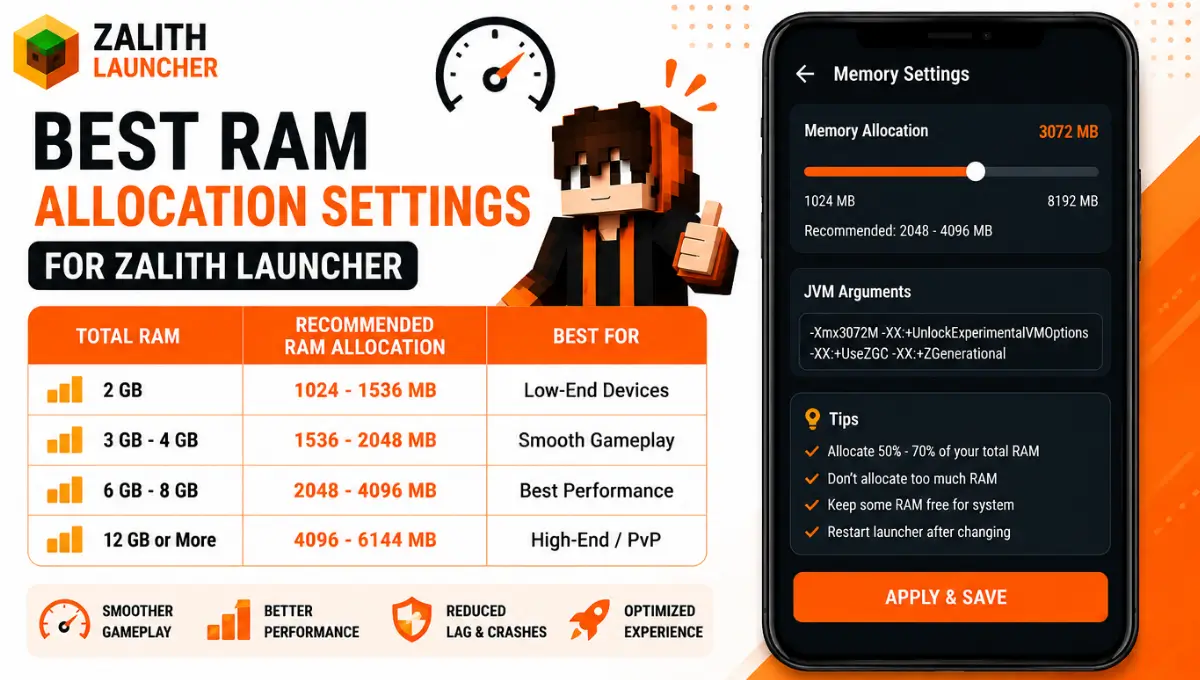
Use your phone’s total RAM as the starting point, not a number you saw a friend use. The table below maps total device memory to a safe ceiling that leaves enough room for Android to keep running smoothly in the background.
| Total Device RAM | Safe Max Allocation | Vanilla Performance | Shaders / Heavy Mods |
|---|---|---|---|
| 3GB | 1GB to 1.5GB | Playable, expect stutter | Not recommended |
| 4GB | 1.5GB to 2GB | Smooth on low render distance | Avoid, will likely crash |
| 6GB | 2.5GB to 3.5GB | Smooth, higher render distance | Light shaders only |
| 8GB | 3.5GB to 4.5GB | Very smooth | Most shaders, moderate modpacks |
| 12GB or more | 5GB to 6GB | No stutter under normal use | Heavy modpacks, most shaders |
Low-End Devices (3GB to 4GB)
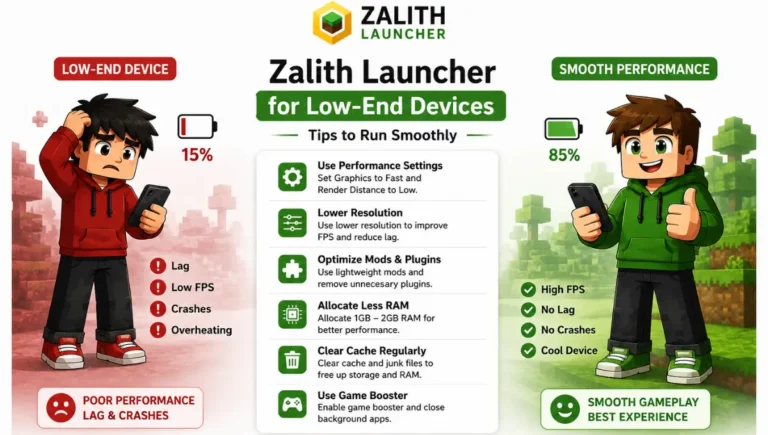
Stay close to 1GB to 1.5GB and keep render distance low. Every extra hundred megabytes matters when the phone itself needs most of the memory to stay stable.
Mid-Range Devices (6GB to 8GB)
Sit between 2.5GB and 4GB depending on total RAM. This range handles vanilla survival, light shaders, and small modpacks without much tuning needed.
High-End Devices (12GB+)
You can safely reach 5GB to 6GB for heavy modpacks and most shader packs, but going beyond that rarely improves performance and just wastes memory.
Rule of thumb: Never allocate more than 60 percent of your phone’s total RAM to Minecraft. Going past that point almost always costs more performance than it gives back, because Android starts fighting the game for the memory it needs to stay running.
How to Set RAM Allocation in Zalith Launcher
Zalith Launcher Changing this setting takes less than a minute once you know where the slider lives. Follow the steps below in order, and test after every change rather than jumping straight to a large number.
Check Your Total Device RAM
Open your phone’s system settings and confirm how much total memory it has, this single number decides every other value in this guide.
Open Zalith Launcher Settings
From the launcher’s main screen, tap the settings icon and scroll down to the section labelled Java or Performance, this is where the memory slider lives.
Find the RAM Allocation Slider
Locate the slider or input field that sets maximum memory, some versions label it Xmx directly instead of a plain RAM slider.
Set a Conservative Starting Value
Match the number to your device tier from the table above rather than guessing, starting low and raising it later is always safer than starting high.
Save and Launch a Test World
Load a normal singleplayer world and play for a few minutes, watch for stutter, freezing, or a sudden crash back to the launcher screen.
Adjust in Small Steps
Raise or lower the value by 500MB at a time and retest, this keeps you from overshooting into a range that crashes the launcher entirely.
Signs Your Current Allocation Is Wrong
Minecraft rarely tells you outright that memory is the problem, it just behaves badly in ways that point back to the same setting. Match what you’re seeing against the table below to figure out which direction to move the slider.
| What You’re Seeing | Likely Cause | Fix |
|---|---|---|
| Frequent stutter, chunks pop in late | Allocation set too low | Raise by 500MB and retest |
| Launcher closes suddenly to home screen | Allocation set too high for the device | Lower by 500MB to 1GB |
| Game runs fine, phone gets very hot | Allocation fine, render distance too high | Lower render distance instead of RAM |
| Long freeze right after loading a world | Garbage collection pausing on a large heap | Lower allocation slightly rather than raising it |
| Crash only when shaders are enabled | Not enough headroom for shader buffers | Raise allocation or disable shaders |
Common RAM Problems and How to Fix Them
Most memory issues on Zalith Launcher trace back to one of the same handful of mistakes. Work through the list below before assuming your device simply isn’t strong enough.
Pros and Cons
Tuning RAM allocation on Zalith Launcher gets you noticeably smoother gameplay, but pushing the number too far introduces its own set of problems worth understanding before you commit to a high value.
Pros
Cons
FAQs
Quick answers about RAM allocation on Zalith Launcher.
Conclusion
There is no single RAM number that works for every phone, only a range that fits your device and how far past it things start to break. Start with the safe ceiling from the table above, test in a real world instead of guessing, and move the slider in small steps until stutter and crashes both disappear. Once you find that number, write it down, because it will almost always be the right starting point again after a future update or a fresh install. Get this one setting right and Zalith Launcher stops fighting you before every session even starts.