How to Fix Zalith Launcher Crashing or Not Opening (2026 Guide)
You tap the Zalith Launcher icon, wait for the loading spinner and then, nothing. The app closes itself, throws you back to your home screen, or freezes on a black loading screen with no explanation at all. It’s one of the most common complaints Android Minecraft players run into and the frustrating part is that the cause changes from person to person, sometimes it’s a corrupted cache, sometimes it’s a mod fighting your Java version, sometimes your phone simply doesn’t have the RAM to keep up.
The good news is that almost every crash traces back to one of a handful of root causes, and once you know which one you’re dealing with, the fix usually takes less than five minutes. This guide walks through why Zalith Launcher crashes or refuses to open in the first place, how to read the error codes it throws at you and the exact order of fixes to try so you’re not guessing your way through it.
Why Does Zalith Launcher Keep Crashing?
Zalith Launcher runs Minecraft: Java Edition through a compatibility layer on top of Android, which means it’s juggling a full Java runtime, an OpenGL-to-Vulkan (or GL4ES) translation layer, and your phone’s own memory limits all at once. When any one of those pieces gets out of sync, a mismatched Java version, a mod built for a different Minecraft build, or the app simply running out of memory, the whole process gets killed instead of throwing a friendly error message.
Most crashes fall into one of four buckets: corrupted app data (a bad cache or broken instance folder), version mismatches (mods, shaders, or Java runtimes that don’t match your Minecraft version), hardware limits (not enough RAM allocated, or the device simply can’t handle the load), and outdated software (an old launcher build with a bug that’s already been patched). The table below breaks down which symptom usually points to which bucket.
| Symptom | Most Likely Cause |
|---|---|
| App closes instantly when you tap the icon | Corrupted cache or a broken launcher update |
| Crashes only after adding a mod or shader | Version mismatch between the mod and your Minecraft build |
| Freezes on a black or gray loading screen | Rendering layer failing to initialize (GPU driver or renderer setting) |
| Crashes a few minutes into gameplay | Insufficient RAM allocated for the session |
| Won’t open at all, no splash screen | Corrupted install or incompatible Android/APK version |
Check This First
Before touching any settings, confirm you’re on the latest Zalith Launcher build from the official site or GitHub, not a mirrored APK. A huge share of crash reports trace back to outdated builds with bugs already fixed upstream.
Know Your RAM
Minecraft Java on Android is comfortable at 2–4GB allocated RAM for vanilla worlds, and needs more the moment mods or shaders enter the picture. Check your total device RAM under phone settings before assuming a crash is a bug.
Back Up First
If you’re going to clear cache, reinstall, or touch mod folders, copy your world saves out first. Most fixes below don’t touch saves, but it costs nothing to be safe before editing app data.
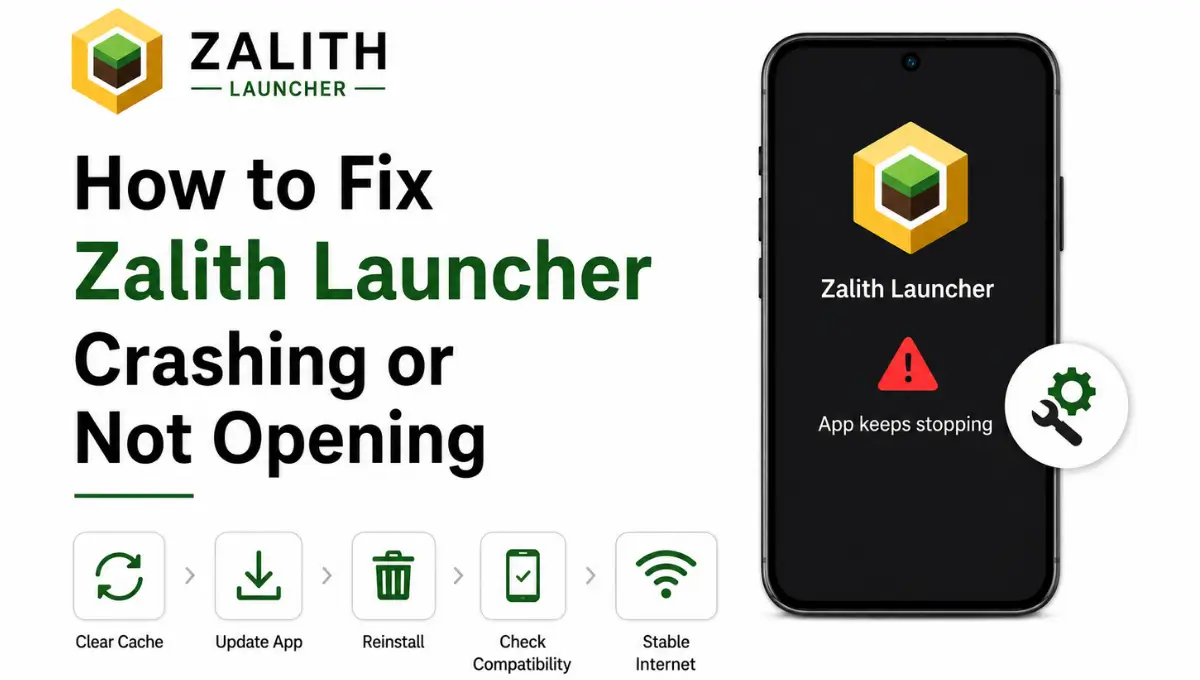
Step-by-Step: How to Fix Zalith Launcher Crashing or Not Opening
Work through these in order. Each step targets a different layer of the problem, starting with the quickest fixes and gradually moving toward the more involved ones, so you are not stuck reinstalling the entire launcher when a simple 30-second restart would have solved it. Skipping ahead usually just means redoing steps you already needed, so give each one a fair try before assuming it did not work and jumping to the next.
Restart Your Device
Sounds basic, but a restart clears RAM held by background apps and resets any stuck system processes that quietly interfere with the launcher. Try this before anything else.
Update Zalith Launcher
Open the launcher’s settings or check the official download page for a newer build. Many crash-on-open bugs are already patched in later releases.
Clear the App Cache
In Android Settings, go to Apps, select Zalith Launcher, then Storage, and tap Clear Cache (not Clear Data, that would remove your instances). This fixes a large share of instant-close crashes.
Lower Your RAM Allocation Slightly
It sounds backward, but allocating more RAM than your device can spare causes crashes too. Open launcher settings and set allocation to roughly 60-70% of total device RAM, not the maximum slider.
Remove Recently Added Mods or Shaders
If the crash started after adding something new, that’s almost always the cause. Move mods out of the mods folder one at a time and relaunch to isolate the conflicting file.
Reinstall as a Last Resort
If nothing above works, uninstall Zalith Launcher completely, restart your device, then install a fresh copy from the official source. Your world saves are usually stored separately, but back them up first regardless.
Read More: Zalith Launcher Shader Installation Guide
Decoding Zalith Launcher’s Error Codes
When Zalith Launcher crashes mid-session rather than failing to open at all, it usually leaves behind an error code somewhere in the crash log, and that single detail is the fastest way to figure out what actually went wrong. These codes look cryptic at first glance, full of hex values and stack traces that mean nothing on their own, but each one points to a specific, fixable cause once you know what to look for. Here are the ones players run into most, along with what each one is actually telling you and how to clear it for good.
| Error | What It Means | Fix |
|---|---|---|
| Aborted by Fatal Signal 6 | A native library or mod crashed the Java virtual machine directly, usually a renderer/mod/Java version mismatch | Match your mod loader and shader build exactly to your Minecraft version; remove mods added most recently |
| Application/Game Exited with Code -1 | The game process was killed unexpectedly, often from a memory error or corrupted instance | Lower RAM allocation slightly, verify the instance isn’t corrupted, or create a fresh instance |
| Black screen after loading bar completes | The renderer failed to initialize properly on your GPU | Switch renderer between OpenGL/Vulkan/GL4ES in launcher render settings and relaunch |
| App Not Responding (ANR) | Main thread is blocked, usually while loading a heavy world or shader on limited RAM | Close background apps, increase allocated RAM if available, reduce render distance |
| Launcher closes with no code at all | Corrupted cache or a broken update package | Clear app cache first; reinstall from the official source if it persists |
Quick Fixes Worth Trying First
Last Resort Fixes to Save For Later
FAQs
Quick answers about Zalith Launcher crashing or not opening.
Conclusion
Most Zalith Launcher crashes come down to one of a few repeat offenders: a stale cache, a mod or shader that doesn’t match your Minecraft version, or RAM allocated past what your device can actually spare. Working through the steps in order, restart, update, clear cache, adjust RAM, isolate mods, reinstall as a last resort, resolves the overwhelming majority of cases without needing to touch a single config file by hand.
If you do run into a specific error code along the way, use it as a shortcut rather than a dead end, Fatal Signal 6, Exit Code -1 and black-screen freezes each point to a specific fix rather than a random glitch. Keep the launcher updated, download mods only from trusted sources and future crashes become the exception rather than the norm.