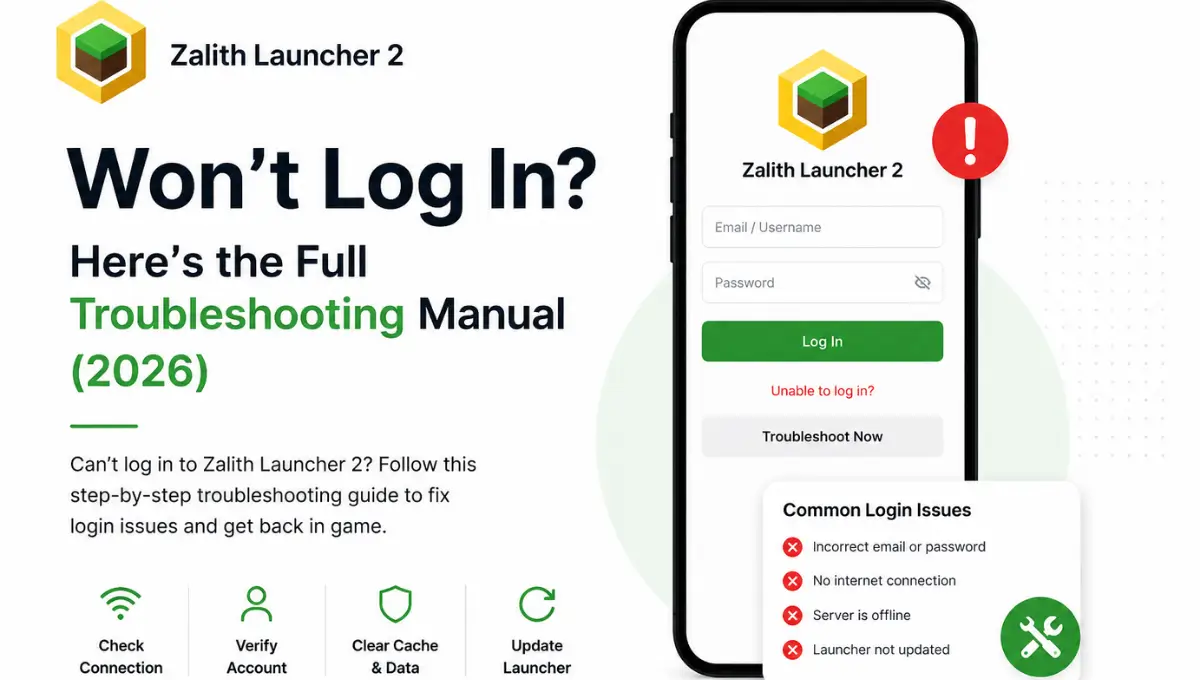
Zalith Launcher 2 Won’t Log In? Here’s the Full Troubleshooting Manual (2026)
You open Zalith Launcher 2, tap Login and instead of dropping into your world you’re stuck staring at an error, a frozen spinner, or a message telling you the sign-in just failed. It’s an annoying way to start a gaming session,and it happens to a lot of people at some point, usually right when they’re least expecting it. The good news is that this problem is almost never mysterious. In the overwhelming majority of cases, it comes down to one of four things: an expired login token, a temporary outage on Microsoft’s side, a network quietly blocking the connection, or an account that simply doesn’t hold a Java Edition license.
This manual walks through exactly how to tell which one you’re dealing with, then gives you a clear, ordered set of fixes so you’re not just guessing and retrying the same broken login over and over. Work through the steps from top to bottom, most people are back in the game within the first two or three.
What Does Your Login Error Actually Look Like? (Zalith Launcher)
Before trying any fix first identify what your Zalith Launcher login error actually looks like. Different error messages have different causes. Knowing the exact issue helps you choose the right solution and get back into Minecraft faster.
1. Session Expired, Login Screen Reappears
The launcher opens fine, but instead of going straight to Play, it drops you back at the sign-in screen. This is the most common and least serious version, your stored token has simply timed out after a period of inactivity.
2. Login Hangs or Times Out for Everyone
You tap Login, the spinner runs for far longer than usual, and then either nothing happens or you get a vague failure message. This pattern points to a problem on Microsoft’s end, their authentication servers being slow or temporarily down, rather than anything wrong with your device or the launcher itself.
3. Instant Failure Every Single Time
The login screen appears immediately and fails within a second or two, no matter how many times you try. This almost always means your network is blocking the connection outright. School, university, and workplace Wi-Fi are the most common culprits, since many of them filter the exact endpoints Xbox Live authentication relies on.
4. “This Account Can’t Play” After a Successful Sign-In (Zalith Launcher)
You actually sign in successfully, but Zalith Launcher 2 tells you the account can’t launch the game. This means the Microsoft account you’re using doesn’t hold a Minecraft: Java Edition license, often because it only owns Bedrock Edition, or it’s a family/demo account without a full purchase attached.
Read More: Zalith Launcher Offline Mode — How to Play Without Login
Quick Diagnosis Table
Use this quick diagnosis table to match your Zalith Launcher login error with its most likely cause. It helps you identify the problem quickly and choose the right fix without wasting time on unnecessary troubleshooting.
| Symptom | Likely Cause | Fastest Fix |
|---|---|---|
| Randomly logged out after days of use | Expired local token | Sign out, sign back in |
| Login hangs or times out for everyone | Microsoft server outage | Wait and check server status |
| Fails instantly on school/office Wi-Fi | Network firewall block | Switch to mobile data or a VPN |
| “This account can’t play” message | No Java Edition license on the account | Verify ownership on minecraft.net |
| Error appeared right after updating | Corrupted cache or outdated build | Clear cache, install latest APK |
| Works on data but not Wi-Fi (or vice versa) | Router-level DNS or firewall issue | Change DNS or try a trusted VPN |
Need Back In Fast?
Sign out fully, force-close the app, and sign back in. This alone resolves the majority of login failures in under two minutes.
Still Stuck?
Move on to clearing the cache, checking Microsoft’s server status, and testing your network, covered step by step below.
Need to Play Right Now?
Add an offline account for single-player and LAN worlds while you troubleshoot the real fix in the background.
Step-by-Step Fixes, In Order
Work through these one at a time. Most people never need to go past step three.
Sign Out and Sign Back In
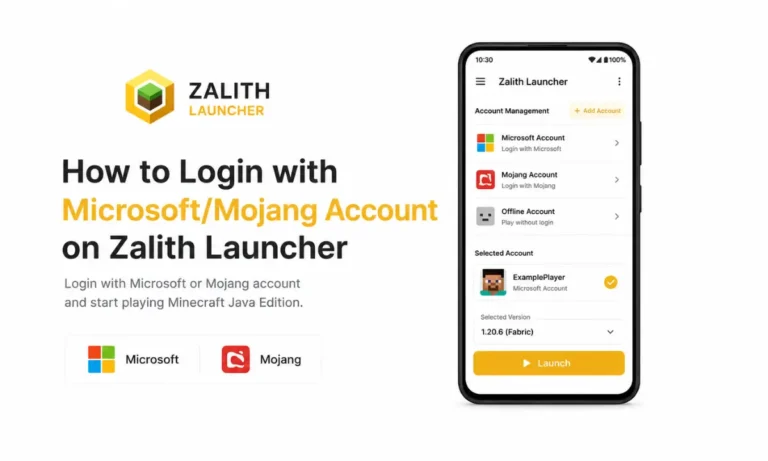
Open Zalith Launcher 2, go to your profile, and tap Sign Out rather than just closing the app. Then add your Microsoft account again and complete the login in the browser window that opens.
Clear the App’s Cache
In Android Settings, go to Apps, find Zalith Launcher 2, open Storage, and tap Clear Cache, not Clear Data. Restart the launcher and try signing in again.
Check Microsoft’s Server Status
Open a browser and check a live status page for Xbox Live and Microsoft account services. If there’s an outage, simply wait it out, there’s nothing to fix on your end.
Switch Networks
Try mobile data if you’re on Wi-Fi, or the reverse. If login suddenly works, your original network was blocking the connection, use a different network or a trusted VPN going forward.
Confirm Your Account Owns Java Edition
Sign in through minecraft.net in a browser and check your profile. If Java Edition isn’t listed as owned, that’s the entire problem, no amount of retrying will fix a licensing mismatch.
Update to the Latest Launcher Version
Older builds sometimes rely on authentication endpoints Microsoft has retired. Download the latest APK from the official site or GitHub releases and install it over your current setup.
Playing While You Wait: Offline Mode in Zalith Launcher
If you need to play right now and can’t wait on a fix, Zalith Launcher 2 lets you add an offline account under any username through the account settings menu. This gets you into single-player worlds and LAN games immediately. Just know that online multiplayer and any server requiring real authentication won’t be reachable until the underlying login issue is actually resolved, offline mode is a stopgap, not a permanent replacement.
Deeper Causes Worth Ruling Out
If you’ve worked through every step above and the login still fails, a few less common causes are worth checking before assuming something’s fundamentally broken.
| Cause | How to Confirm | Fix |
|---|---|---|
| Device date/time is incorrect | Check your phone’s clock against a real-time source | Enable automatic date and time in Android Settings |
| Corrupted app installation | Errors persist even after clearing cache and updating | Uninstall and reinstall Zalith Launcher 2 fresh |
| Family or child account restrictions | Account belongs to a family safety group | Check parental controls under the Microsoft family account settings |
| Router-level DNS blocking | Fails on home Wi-Fi but works on mobile data | Switch to a public DNS like 1.1.1.1 or 8.8.8.8 |
| VPN or proxy interference | Login fails only while a VPN is active | Disable the VPN and try signing in again |
FAQs
Quick answers about the Zalith Launcher 2 login error.
Conclusion
A Zalith Launcher 2 login failure almost always comes down to one of three things: an expired token, a temporary Microsoft outage, or a network quietly getting in the way. Working through the fixes in order, starting with a simple sign-out-and-back-in and only moving further if that doesn’t work, resolves the overwhelming majority of cases within a few minutes.
If you’re still stuck after clearing the cache, checking Microsoft’s server status, and confirming your account’s license, offline mode is always there so you don’t have to stop playing entirely while you sort out the rest. And once the fix does land, going forward is as simple as keeping the launcher updated and letting your token refresh naturally each time you sign in.