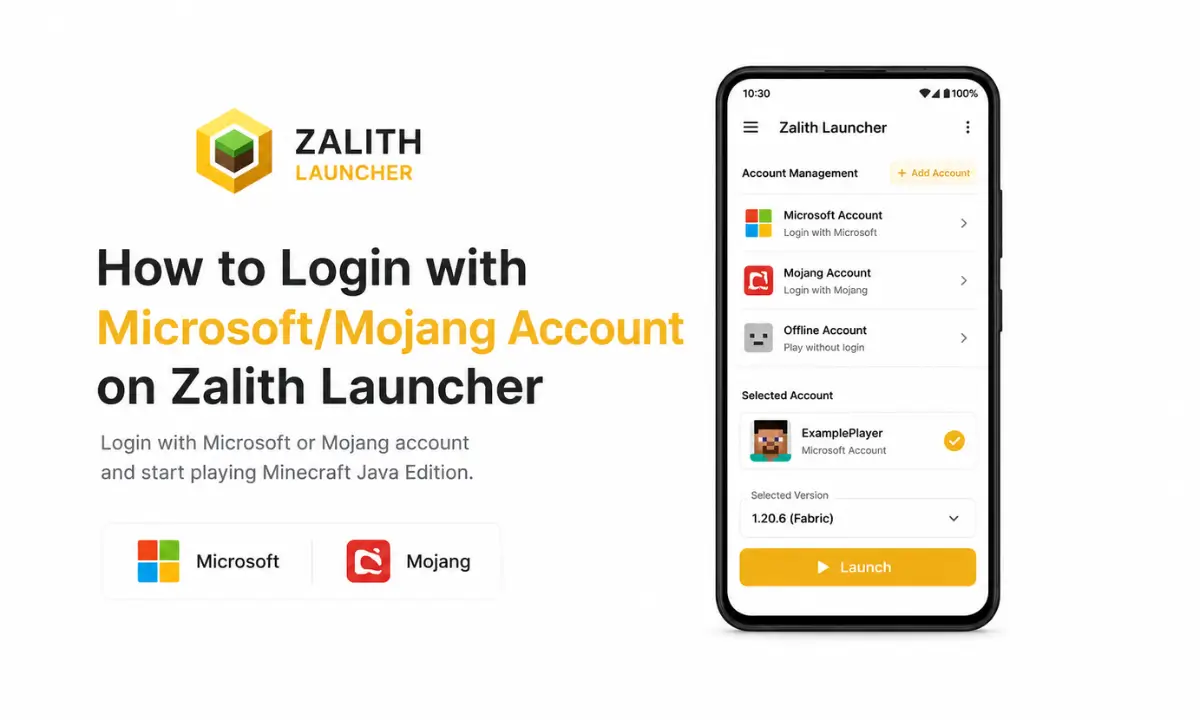
How to Login with Microsoft/Mojang Account on Zalith Launcher
Before you can jump into Minecraft: Java Edition on your phone, Zalith Launcher needs to know who you are. That means logging in with an account, and the launcher actually supports three different types: Microsoft, legacy Mojang and Offline. Picking the wrong one, or getting stuck partway through the sign-in process, is one of the most common reasons new users can’t get past the main menu. This guide walks you through every account type from A to Z, the exact device-code login flow Zalith Launcher uses, and how to fix the most common login errors.
Why Your Account Type Matters
Minecraft: Java Edition checks your account before letting you join most servers, and Zalith Launcher passes that same check along whenever you play online. A Microsoft account (or an unmigrated legacy Mojang account) proves you actually own a paid copy of the game, which is what unlocks servers like Hypixel, skin uploads, and achievements. An Offline account, on the other hand, skips authentication entirely, it’s free, instant, and works without an internet connection, but it can’t touch premium multiplayer servers.
Understanding this difference up front saves a lot of confusion later. If you’ve ever seen “Authentication Failed” or wondered why a server keeps rejecting your login, the root cause is almost always a mismatch between the account type you’re using and what the server actually requires.
Also Read: Zalith Launcher Shader Installation Guide – Easy Setup for Minecraft Java (2026)
Account Types Supported by Zalith Launcher
Before logging in, check the table below to see which account type actually fits what you want to do.
| Account Type | Requires Purchase | Server Access | Best For |
|---|---|---|---|
| Microsoft | Yes | Full (Hypixel, realms, skins, achievements) | Regular players who own Java Edition |
| Mojang (Legacy) | Yes (older accounts) | Same as Microsoft, if not yet migrated | Players who never migrated an old Mojang login |
| Offline / Local | No | Singleplayer, LAN, offline-friendly servers only | Testing, LAN play with friends, no internet |
Microsoft Account — Recommended
The most feature-complete login. Uses Microsoft’s secure device-code flow, so you never type your password directly inside the launcher, and it unlocks every server that checks for a genuine, paid copy of the game.
Mojang Legacy — Older Accounts
For accounts created before the 2023 Microsoft migration. If yours was never migrated, Zalith Launcher still accepts the old email and password directly, no Microsoft sign-in needed.
Offline Account — Free & Instant
No purchase, no internet, no waiting. Pick a username, and the launcher generates a local profile with a random UUID instantly, ready for singleplayer or LAN.
Before you start: Make sure you actually own Minecraft: Java Edition on your Microsoft account and that a game profile (username) has already been set up on minecraft.net. If the Java section shows “Buy Now” instead of “Learn More” or “Play”, you’ll need to purchase the game before Zalith Launcher can log you in.
How to Login with a Microsoft Account (Step-by-Step)
Zalith Launcher uses Microsoft’s official device-code OAuth flow for sign-in, the same secure system used by consoles and TVs. You never type your Microsoft password into the launcher itself. Follow these steps in order, from A to Z.
Open Account Management
Launch Zalith Launcher and tap the account icon or menu to open the Account Management page, this is where every login type gets added.
Choose “Add Microsoft Account”
Select the Microsoft login option. The launcher starts a background task to request a one-time device code from Microsoft’s servers.
Copy the Device Code
The launcher displays a short code and usually copies it to your clipboard automatically, keep this screen open, you’ll need the code in the next step.
Sign In on microsoft.com/link
Open a browser, go to the Microsoft device-login page, paste the code, and sign in with your Microsoft email and password as usual.
Wait for Automatic Verification
Switch back to Zalith Launcher, it checks your login every few seconds. Once verified, your account and Minecraft username appear in Account Management automatically.
Select the Account and Launch
Tap your newly added Microsoft account to set it active, choose your Minecraft version, and hit Launch to start playing with full server access.
Legacy Mojang Account Setup for Zalith Launcher
If you created your Minecraft account a long time ago and never migrated it to Microsoft, Zalith Launcher still lets you log in directly with your old Mojang email and password from the same Account Management screen. Choose “Add Mojang Account” instead of Microsoft, enter your credentials, and the launcher authenticates you the same way the original Minecraft launcher used to. Keep in mind most Mojang accounts were auto-migrated back in 2023, if login fails here, try the Microsoft option instead since your account has likely already moved over.
How to Create an Offline Account
Offline accounts are the fastest way to get into the game, no purchase and no internet connection required. Here’s how to set one up correctly.
| Steps | Guidness |
|---|---|
| 1 | Open Account Management from the launcher’s main menu |
| 2 | Tap Add Account, then select Offline Account |
| 3 | Enter a username using only letters, numbers, and underscores |
| 4 | Save the account, it appears instantly with no waiting |
| 5 | Select the account, choose a Minecraft version, and launch |
Offline usernames have strict rules: only letters (a-z, A-Z), digits (0-9), and underscores are allowed, no spaces or special symbols. Using an invalid character can prevent Minecraft from launching properly, even in singleplayer, so double-check the name before saving.
Which Account Type Should You Use?
Match your situation to the recommended login below rather than guessing.
| Situation | Recommended Account |
|---|---|
| You own Java Edition and want full server access | Microsoft Account |
| You have an old, unmigrated Mojang login | Mojang (Legacy) Account |
| You just want to test the launcher or play solo | Offline Account |
| You want to play with friends on the same Wi-Fi | Offline Account (LAN) |
| You’re joining a private server with a custom auth system | Offline Account + Authlib-Injector |
Common Login Issues and Quick Fixes
Login problems are almost always caused by one of a few predictable issues. Here’s how to resolve the most common ones quickly.
Playing on Private Servers with Authlib-Injector
Some private servers run their own authentication system instead of Microsoft’s. Zalith Launcher supports this through Authlib-Injector, a bridge that connects your login to a third-party authentication server rather than Microsoft or Mojang. If a server you want to join gives you an Authlib-Injector link, add it in the launcher’s authentication settings, create or import an account through that service, and you’ll be able to log in and play exactly as intended by that server, all without needing a paid Microsoft account.
FAQs
Quick answers about logging into Zalith Launcher.
Conclusion
Logging into Zalith Launcher comes down to picking the account type that matches what you actually want to do, Microsoft for full server access, legacy Mojang if you’ve somehow avoided migration this long, or Offline if you just want to jump in and play. The device-code sign-in process might look unfamiliar the first time, but it takes less than a minute once you know the steps, and it never asks for your password inside the app itself. Follow the guide above in order, double-check your offline username if you go that route, and you’ll be in-game with the right account and full server access in no time.