How to Play Multiplayer/LAN with Zalith Launcher
Playing Minecraft alone gets old fast. Zalith Launcher was built to change that. It brings the full Java Edition multiplayer experience to your phone so you can drop into a server with friends or host a quick LAN world for the people sitting right next to you.
This guide covers both paths in full. You’ll learn how to set up LAN play in a few taps. You’ll also learn how to join a public or private server using a server address. Along the way you’ll find the exact settings that trip people up and the quick fixes for the errors that show up most often.
Two Ways to Play With Others
Zalith Launcher offers two simple ways to enjoy multiplayer Minecraft. You can join online servers using a supported account or play locally through LAN with friends connected to the same Wi Fi network. Zalith Launcher makes both options easy to access while supporting multiple Minecraft versions. Choosing the right method depends on whether you want internet based multiplayer or local gameplay. Understanding these options helps Zalith Launcher users connect faster avoid common connection problems and get the best multiplayer experience with Zalith Launcher.
LAN Play
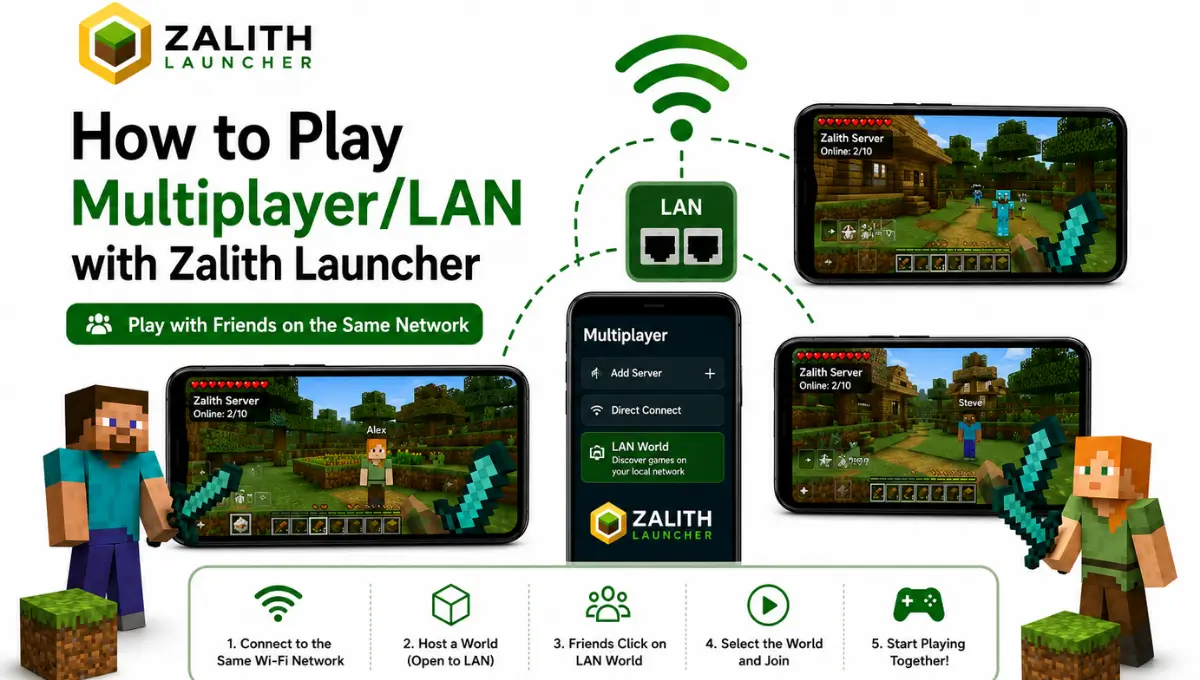
Everyone connects to the same Wi-Fi network. One person hosts a world and opens it to LAN. Nobody needs a server address or a paid host. This is the fastest way to play with people in the same room or house.
Online Servers
You connect to a server address from anywhere in the world. This covers public servers like SMPs and Hypixel style networks as well as private servers your friend group rents or self hosts.
What You Need Before You Start
A few things need to be in place before either mode will work properly.
| Requirement | LAN Play | Online Servers |
|---|---|---|
| Same Wi-Fi network | Required | Not needed |
| Microsoft account login | Optional (offline works too) | Required for premium servers |
| Matching game version | Required | Required |
| Same mod loader and mods | Required if using mods | Required if the server uses mods |
| Server IP address | Not needed | Required |
Read More: How to Fix Lag and Boost FPS in Zalith Launcher
Setting Up LAN Play Step by Step
Setting up LAN play in Zalith Launcher is quick and allows multiple players on the same Wi Fi network to join the same Minecraft world. First connect all devices to the same network then open your world in Zalith Launcher and enable Open to LAN from the pause menu. On the other devices open the Multiplayer menu and select the available LAN world. If the game does not appear check your firewall network permissions and game version. Following these steps ensures Zalith Launcher provides a stable local multiplayer experience and helps Zalith Launcher users connect without unnecessary issues.
Open or Create a World
Launch Zalith Launcher and start a single player world you already have. Any existing world works fine for this.
Open the Pause Menu
Once inside the world tap the menu button and look for the option labeled Open to LAN.
Set the Game Mode and Cheats
Choose survival or creative and decide whether cheats should be allowed for the session. Then tap Start LAN World.
Note the Port Number
The game will show a message with a port number in chat. Other players don’t need this directly but it confirms the world is now visible on the network.
Join From Another Device
On a friend’s phone open Zalith Launcher, go to Multiplayer, and the host’s world should appear automatically under LAN Worlds. Tap it and select Join.
Troubleshoot if Nothing Shows Up
Confirm both devices are on the exact same Wi-Fi network and not on a guest or isolated network that blocks device to device traffic.
Joining an Online Server Step by Step
Joining an online server is a simple process once you have the correct server address and a compatible Minecraft version. Enter the server IP in the Multiplayer menu then connect using a stable internet connection. If you cannot join verify the server details check your game version and make sure the server is online before trying again.
Log In With Your Microsoft Account
Premium servers verify ownership so an authenticated login is required. Offline accounts only work on servers set to allow cracked clients.
Open the Multiplayer Tab
From the main menu select Multiplayer then tap Add Server at the bottom of the screen.
Enter the Server Address
Type the server name for your own reference and paste the exact IP address the server owner gave you into the Server Address field.
Save and Connect
Tap Done to save the entry then tap the server once more and select Join Server.
Match the Mod Loader if Required
If the server runs Forge, Fabric, Quilt, or NeoForge, install the matching loader and mod files inside Zalith Launcher before connecting.
Confirm the Game Version
A version mismatch is the single most common reason a connection fails on the first try. Set your launcher’s version to match the server exactly.
Common Connection Errors and Fast Fixes
Connection problems in Zalith Launcher are usually caused by network settings outdated game files or incorrect server details. Common errors include timeout failed authentication server not found and connection refused. In many cases restarting Zalith Launcher checking your internet connection updating the launcher or verifying the server address fixes the issue quickly. If you are using offline mode remember that some online servers require Microsoft authentication and will reject offline accounts. Following these simple troubleshooting steps helps Zalith Launcher users restore multiplayer access faster and keeps Zalith Launcher running smoothly.
| Error | Likely Cause | Fix |
|---|---|---|
| LAN world doesn’t appear on other devices | Devices are on different networks or a guest network | Connect every device to the same main Wi-Fi network |
| “Invalid Session” on join | Login token expired or offline mode mismatch | Sign out and sign back in with the same account type as the host |
| “Outdated Server” or “Outdated Client” | Version mismatch between launcher and server | Change your version to match the server exactly |
| Connection times out on a server IP | Server is offline or the address was typed wrong | Double check the IP and try again after a few minutes |
| Kicked immediately after joining a modded server | Missing or mismatched mod files | Install the exact mod list and loader version the server requires |
Many routers isolate guest networks from each other. Use the main household network for LAN worlds to work.
Even one missing mod file can block a connection on a modded server. Copy the full mod list before joining.
Once added, a server stays in your list. You won’t need to retype the IP address every time you want to join.
FAQs
Quick answers about multiplayer and LAN on Zalith Launcher.
Conclusion
Multiplayer on Zalith Launcher comes down to two simple paths. LAN play gets you into a shared world in minutes with nothing more than the same Wi-Fi network. Online servers open up the wider Minecraft community as long as your login, version, and mods line up with what the server expects.
Keeping the Minecraft version and mod loader the same on every device prevents most multiplayer problems before they happen. Matching game versions ensures all players can connect without compatibility errors. Once everything is synced simply open your world enable LAN if needed invite your friends and start playing together without extra setup or complicated configuration.