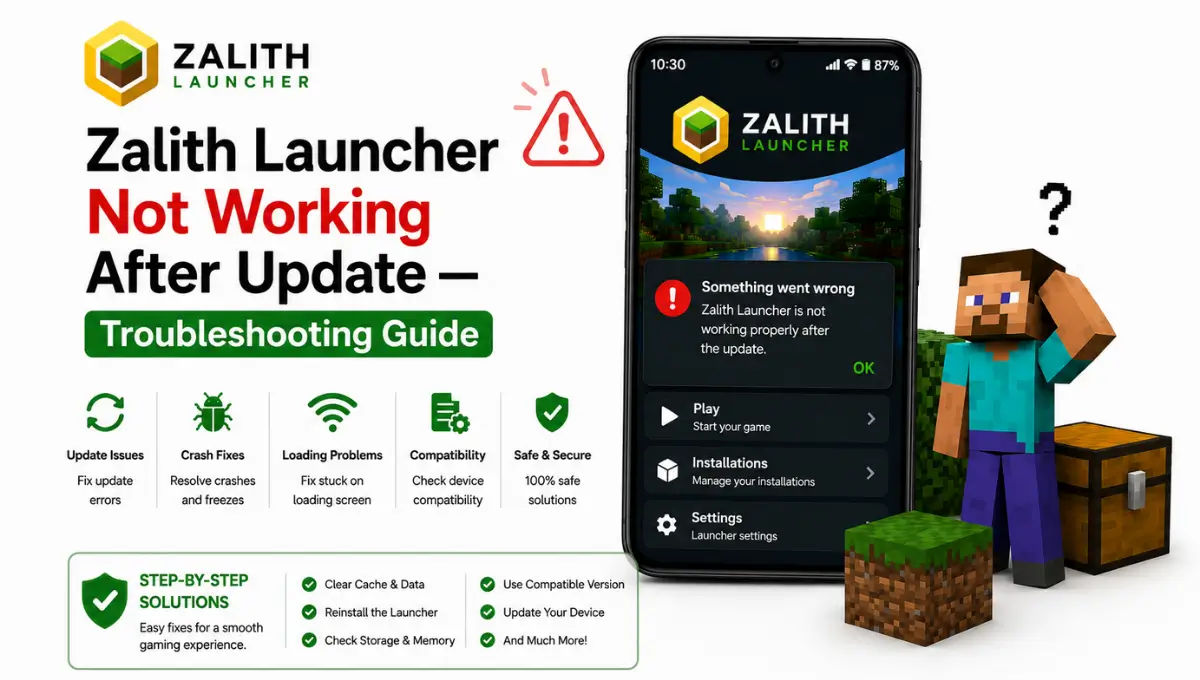
Zalith Launcher Not Working After Update On Android — Troubleshooting Guide
You updated Zalith Launcher expecting bug fixes and smoother performance. Instead the app won’t open. Or it opens and crashes the second you hit Play. Maybe you’re stuck staring at a black screen after the loading bar finishes with no error message anywhere in sight.
This happens more often than it should and it almost never means your device is broken. An update rewrites internal files and changes how the launcher talks to your GPU and to Minecraft’s own asset system. Your saved mods, your cached login data, and your old render settings don’t automatically know about those changes. That mismatch is where almost every post-update crash comes from.
This guide walks through why that mismatch happens, how to read the specific symptom you’re seeing, and a full ordered list of fixes so you’re not randomly toggling settings and hoping something sticks. Work through it from top to bottom and you’ll almost certainly be back in your world before you reach the last few steps.
Why Updates Break Things In The First Place in Zalith Launcher
It feels backwards that a fix-focused update would introduce new problems but there’s a simple reason it happens. Zalith Launcher’s developers regularly update the underlying rendering engine, the login flow, and the way the app manages Minecraft’s version files. Each of those changes is meant to improve stability long term but they also mean the launcher is no longer starting from a clean slate on your device.
Three things commonly get left behind after an update. The first is a stale cache holding references to files that no longer exist in the new build. The second is a render setting that worked fine on the old engine but isn’t compatible with the new one. The third is a mod or shader built against an older Minecraft version that the update quietly moved past. None of these are bugs in the strict sense. They’re leftover assumptions your device is still making about a launcher that changed underneath it.
Stale Cache
Old temporary files pointing to a version of the launcher that no longer exists. Usually the first thing to clear after any update.
Outdated Render Setting
A render backend choice that suited the old engine but doesn’t match the updated one, often the cause behind a black screen.
Version-Locked Mods
A mod or shader pack built for the Minecraft version the update moved past. Shows up as a crash the moment a world tries to load.
What’s Actually Happening After Your Update Zalith Launcher
Match your exact symptom below before jumping into fixes. The right fix depends entirely on which one you’re facing and skipping straight to a random step usually wastes more time than reading this section carefully.
App Closes Before It Even Loads
You tap the icon and within a second or two the app closes on its own with no error message. This usually points to a corrupted cache left behind from the previous version rather than anything wrong with the new build itself.
Loading Bar Finishes Then Nothing
The launcher opens and the loading bar completes normally but the game window stays completely black. This is almost always a renderer mismatch tied to your device’s specific GPU model.
Crashes Only When Loading a World
The launcher itself opens fine and even shows the main menu without issue but crashes the second a modded world tries to load. A mod built for the older Minecraft version is the likely cause here.
Stuck on the Loading Screen Forever
The progress bar stops moving and never finishes no matter how long you wait. This often traces back to low free storage on your device or RAM allocated past what your phone can actually spare.
Quick Fix Table (Zalith Launcher)
Jump straight to the fastest fix for what you’re seeing before reading the full breakdown further down.
| Symptom | Likely Cause | Fastest Fix |
|---|---|---|
| App crashes right after opening | Stale cache from the old version | Clear app cache and relaunch |
| Black screen after loading | Renderer not compatible with your GPU | Switch render backend in settings |
| Crashes when loading a specific world | Mod built for an older Minecraft version | Remove or update the conflicting mod |
| Loading bar never finishes | Low storage or RAM allocated too high | Free up space and lower RAM allocation |
| Login fails after updating | Old authentication token | Sign out fully and sign back in |
| Shaders look broken or missing | Shader pack not updated for the new renderer | Reinstall a renderer-compatible shader version |
| Still broken after every fix above | Corrupted installation | Uninstall and reinstall a clean copy |
Fixes in Order for Zalith Launcher / Try Each Before Moving to the Next
Zalith Launcher Work through these from top to bottom without skipping ahead. Most people never need to reach the last two steps and jumping straight to a reinstall usually just costs you your saved worlds for nothing.
Restart Your Device First
This clears leftover RAM and background glitches left over from the update process itself. It sounds too simple to matter but it resolves a surprising number of cases entirely on its own before you touch a single setting.
Confirm You’re on the Latest Build
Sometimes an update installs partially due to a dropped connection or interrupted download. Open the launcher’s settings and check the version number against the official release page to make sure the install actually completed.
Clear the App Cache
Go to Android Settings then Apps then Zalith Launcher then Storage and tap Clear Cache. Avoid Clear Data since that removes your saved accounts and worlds along with the temporary files you actually want gone.
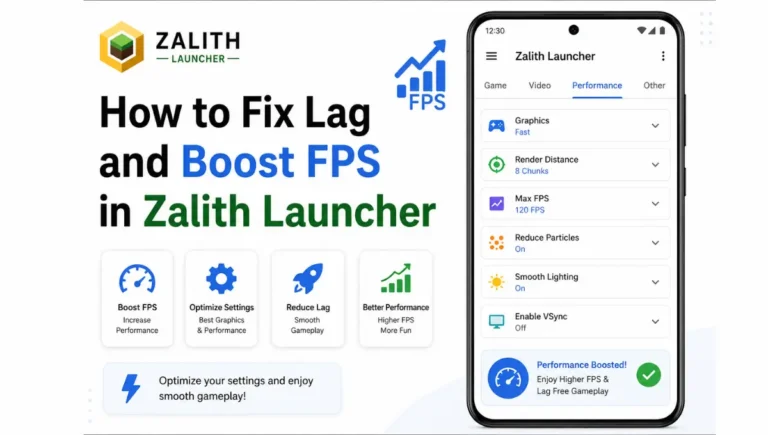
Lower Your RAM Allocation
Open the launcher’s performance settings and drop the allocated RAM by 500MB to 1GB. Allocating more memory than your device can actually spare causes freezes and crashes just as often as allocating too little.
Switch the Render Backend
A black screen after loading usually means the current renderer doesn’t suit your specific GPU. Try switching between OpenGL, Vulkan, and GL4ES one at a time until the game world actually appears on screen.
Remove Recently Added Mods or Shaders
Disable mods one at a time starting with anything installed before the update happened. A single outdated mod is often the entire problem and removing it restores the world without touching anything else.
Free Up Storage Space
Keep at least 3 to 5GB free on your device at all times. Minecraft’s asset downloads and shader compilation both need breathing room to finish properly and a nearly full device causes silent failures during that process.
Reinstall as a Last Resort
Back up your worlds folder first then fully uninstall and install a fresh copy from the official source. If a clean install with no mods still crashes the same way the issue likely sits with your device rather than the launcher itself.
Also Read: Common Errors in Zalith Launcher and How to Fix Them
Understanding Render Backends for Zalith Launcher
Zalith Launcher black screen is confusing because there’s no error message to point you in a direction. What’s actually happening is that Zalith Launcher offers a choice of render backends and not every option runs cleanly on every phone’s GPU. An update sometimes changes the default backend it picks automatically which is exactly why a phone that worked perfectly yesterday shows a black screen today.
| Render Backend | Best Suited For | Common Issue |
|---|---|---|
| OpenGL | Older or budget GPUs, widest compatibility | Lower FPS on shader heavy worlds |
| Vulkan | Newer Adreno and Mali chipsets | Black screen on unsupported drivers |
| GL4ES | Devices with limited native OpenGL support | Slightly reduced texture quality |
Always back up your worlds folder first. Reinstalling wipes local data unless you’ve saved it somewhere else beforehand so don’t skip this step even if you’re in a hurry.
If a clean install with no mods still fails the same way every single time it may be worth filing a report on the official GitHub issues page along with your device model and log files attached.
How to Prevent Zalith Launcher Problems After Future Updates
Zalith Launcher Most of what breaks after an update is preventable with a short routine right after installing it. Clear the cache immediately rather than waiting for a crash to force your hand. Open a lightweight vanilla world first before jumping straight into a heavily modded one so you can confirm the launcher itself is healthy. Only then start re-enabling mods one at a time, checking after each one that everything still loads.
Keeping a small text note of your current render backend and RAM allocation before an update also saves time. If something breaks you’ll know exactly what your working settings used to be instead of guessing at combinations from scratch.
FAQs
Quick answers about Zalith Launcher issues after updating.
Conclusion
Zalith Launcher breaking right after an update almost always comes down to a leftover cache, a mismatched render setting, or mods still built for the version the update moved past. Working through the fixes in order, starting with a restart and a cache clear, resolves the overwhelming majority of cases within a few minutes and without touching a single config file by hand.
Zalith Launcher if you’re still stuck after adjusting RAM, switching the renderer and checking your mods, a clean reinstall is always the reliable fallback. And once things are running again, clearing the cache right after every future update is the one habit that keeps this exact problem from repeating itself the next time around.
Getting Your RAM Allocation Right in Zalith Launcher
Zalith Launcher Allocating too much or too little RAM produces the exact same symptoms an update can trigger, which is why so many people fix one problem and accidentally cause another right after. Use this as a rough starting point based on your device’s total memory and adjust from there.
| Device RAM | Suggested Allocation | Notes |
|---|---|---|
| 3GB to 4GB total | 1GB to 1.5GB | Keep mods and shaders minimal, vanilla runs best here |
| 6GB total | 2GB to 3GB | Handles light modpacks comfortably without stutter |
| 8GB total | 3GB to 4GB | Good headroom for shaders and Fabric mods together |
| 12GB or more | 4GB to 6GB | Supports heavier modpacks and higher render distance |