Zalith Launcher Zink Renderer / What It Is and How to Enable It
If you have spent any time inside Zalith Launcher’s renderer settings you have probably scrolled past an option called Vulkan Zink and wondered what it actually does versus MobileGlues or plain OpenGL. It is not a new addition and it is not the default either, which is exactly why so many players never touch it and never find out whether it would have solved their FPS problems months ago.
Zink is not a Zalith invention. It is a real, open source translation layer built by the Mesa graphics project that lets an OpenGL application run its calls through Vulkan instead. Zalith Launcher simply bundles it as a selectable renderer, which means the results you get depend heavily on what GPU is sitting inside your phone and what you are trying to run on top of it.
This post walks through what Zink actually is under the hood, when it genuinely helps, when it makes things worse, and the exact steps to turn it on without breaking anything you already have set up.
What the Zink Renderer Actually Is Zalith Launcher
Zalith Launcher Minecraft Java Edition was written against OpenGL, a graphics API that has been around since the 1990s and was never designed with mobile chipsets in mind. Most Android GPUs today are tuned around Vulkan, a newer and lower level API that gives developers tighter control over the hardware but expects code written specifically for it. That mismatch is the entire reason launchers like Zalith Launcher need a translation layer at all.
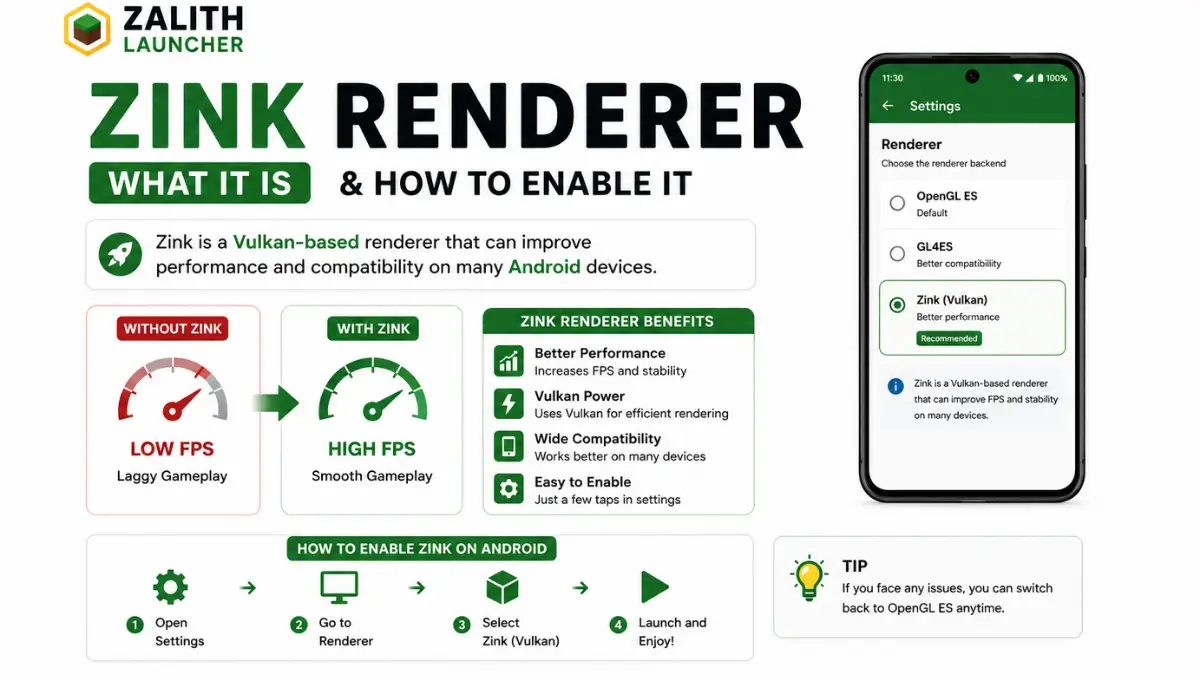
Zink sits in that gap. Instead of asking the phone’s driver to understand OpenGL directly, Zink intercepts every OpenGL call Minecraft makes and rewrites it as the equivalent Vulkan instruction on the fly. The GPU driver never sees OpenGL at all, it only ever sees Vulkan andZalith Launcher Zink is the piece translating between the two in real time.
Zalith Launcher This is different from how MobileGlues works, which maps OpenGL ES calls more directly with less rewriting involved, and different again from GL4ES, which is an older and more limited compatibility shim built for a narrower set of OpenGL features. Zink’s approach is heavier because full translation takes more work per frame, but it is also more complete, which is why it tends to shine on newer chipsets that have Vulkan drivers mature enough to absorb that extra translation cost without choking.
Read More: Zalith Launcher for Low-End Devices — Tips to Run Smoothly
Zink vs MobileGlues vs GL4ES vs VirGL 9(Zalith Launcher)
Zalith Launcher ships with several renderer options and the naming alone confuses a lot of players who just want the game to run smoothly. None of these is objectively the best, they are just built around different tradeoffs and picking the right one comes down to what chip is inside your phone.
| Renderer | How It Works | Best For |
|---|---|---|
| Vulkan Zink | Full OpenGL to Vulkan translation | Newer Snapdragon and flagship Mali chips, shader heavy setups |
| MobileGlues | Lighter OpenGL ES mapping, less rewriting | Mid range devices wanting balance between speed and stability |
| GL4ES | Older, narrower OpenGL compatibility shim | Very low end or older devices lacking Vulkan support |
| VirGL | Virtualized GL passthrough for emulated environments | Testing setups and edge case compatibility |
If your phone shipped in the last two or three years with a mainstream Snapdragon or Dimensity chip there is a good chance Vulkan support is solid enough for Zink to be worth trying first. Older devices, or ones known for shaky Vulkan drivers, tend to do better sticking with MobileGlues or GL4ES instead.
How to Enable Zink in Zalith Launcher
Zalith Launcher Switching renderers takes under two minutes and does not touch your worlds, mods, or accounts. The only thing worth doing first is closing any world you have open so the change applies cleanly on next launch.
Open Your Version Profile
From the launcher home screen tap the version profile you play on, the same one tied to your saves and mods.
Go to Renderer Settings
Inside the profile settings look for the Renderer or Graphics Backend option, usually sitting near the Java runtime selector.
Select Vulkan Zink
Choose Vulkan Zink from the renderer list. If it is greyed out your device likely lacks a compatible Vulkan driver.
Save and Restart the Launcher
Apply the setting and fully close Zalith Launcher from your recent apps before reopening it so the renderer swap takes effect.
Launch a Test World First
Load a low stakes world before jumping into your main save so you can confirm textures and shaders behave correctly.
Revert if Performance Drops
If FPS feels worse or textures flicker, go back into renderer settings and switch to MobileGlues or GL4ES instead.
If Vulkan Zink appears greyed out in your renderer list your GPU driver does not expose Vulkan properly. This is a hardware limitation, not a launcher bug.
Run the same world on Zink and on MobileGlues for a couple of minutes each before deciding. FPS overlays like the built in debug screen make the comparison obvious.
Common Problems After Switching to Zink Zalith Launcher
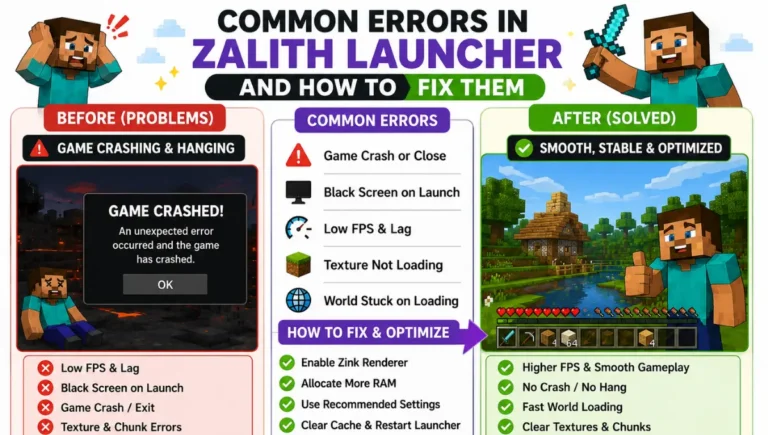
Most issues(Zalith Launcher) people hit after enabling Zink trace back to one of three things: an outdated GPU driver, a shader pack that was never tested against Vulkan translation, or simply a chipset that was never going to handle the extra overhead well in the first place.
If the game launches but the screen stays black or textures come out solid grey, that is almost always a driver problem rather than something wrong with your install. Updating your phone’s system software when an update is available can resolve this since GPU drivers ship as part of those system updates on most Android devices.
If shaders compile but flicker or show harsh banding, try lowering shader quality settings first before assuming Zink itself is broken. Some shader packs push effects that Zink’s translation layer has to work harder to reproduce, and dialing back things like volumetric lighting or reflections often clears it up entirely.
If FPS actually drops compared to your old renderer, that is a sign your chipset was better suited to MobileGlues or GL4ES to begin with. There is no shame in switching back, plenty of very capable phones simply were not built with Vulkan performance as a priority.
Pros and Cons at a Glance Zalith Launcher
Zink is not a universal upgrade over whatever renderer you are already using. It trades one set of problems for another, so here is the honest breakdown before you flip the switch.
Where Zink Wins
Where Zink Struggles
FAQs
Quick answers to what people ask most about the Zink renderer.
Conclusion
Zink is not a magic FPS button and it was never meant to be. It is a genuinely useful option for players on newer Vulkan capable phones who want more complete OpenGL coverage and better shader handling than GL4ES can offer, but it is not going to outperform MobileGlues on every device just because it sounds more advanced.
The only real way to know if it is right for your setup is to try it. Switch your renderer, load a throwaway world, watch your frame rate for a few minutes, and switch back if it is not doing what you hoped. Nothing about that process touches your saves or mods, so there is no real risk in testing it for yourself.
If Zink ends up being the renderer that finally gets your shaders running smooth, great. If it turns out MobileGlues was already the better fit for your chipset, that is a useful thing to know too. Either way you will be running Minecraft on Android with a setup that is actually tuned to your device instead of just whatever was selected by default.