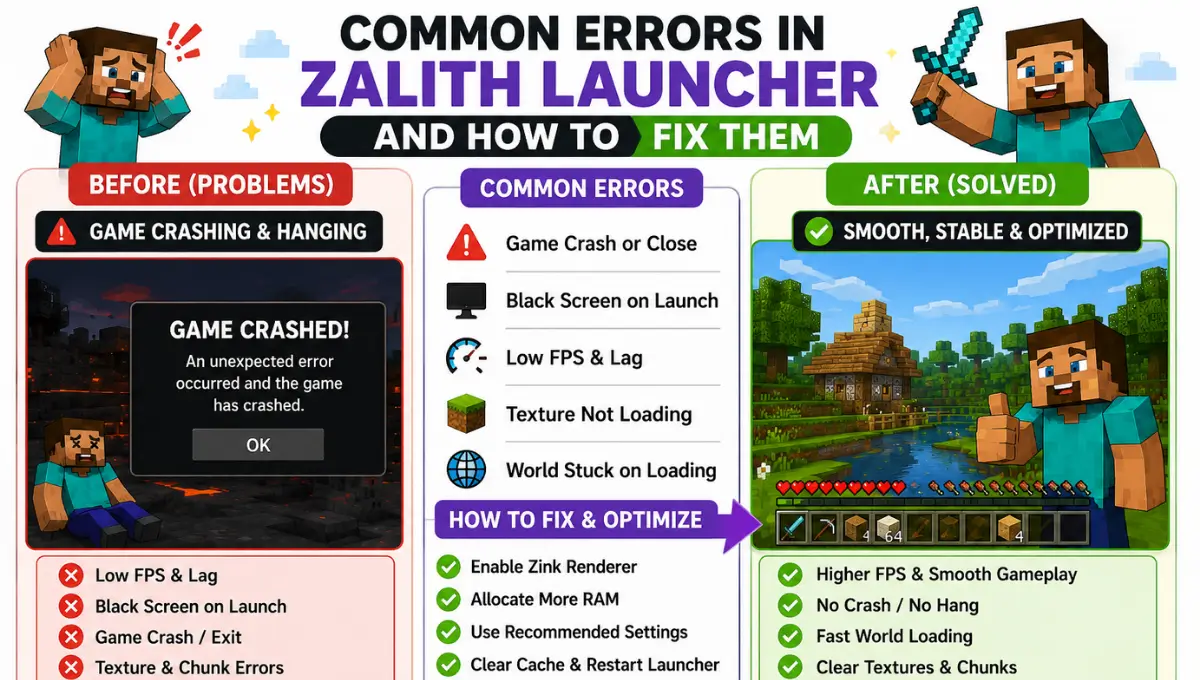
Common Errors in Zalith Launcher and How to Fix Them
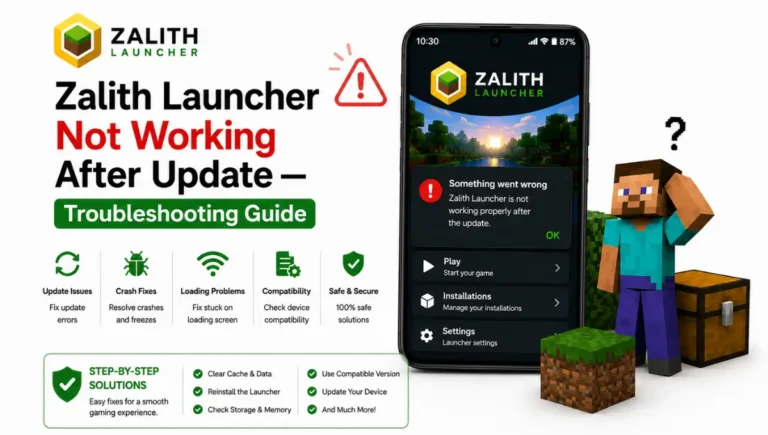
Almost every Zalith Launcher user runs into some kind of error eventually. Maybe the app closes the second you tap Play. Maybe you get stuck staring at a black screen. Maybe it throws a code at you like Error Code 1 or FATAL 6 and gives you nothing else to go on. None of this means your phone is broken or your setup is doomed. It usually means one small piece out of many is out of sync.
Zalith Launcher is doing a lot of work behind the scenes. It runs a full Java environment your phone was never built for. It translates graphics calls through a compatibility layer so your GPU can understand them. It juggles mods, Java versions, memory limits, and login sessions all at the same time. When one of those pieces slips even slightly the whole thing can crash without much explanation.
This guide breaks down the errors people actually run into most, what usually causes each one, and the exact fix that clears it. No guesswork, no reinstalling everything from scratch unless that is genuinely the last option left.
Why Zalith Launcher Throws So Many Errors
Minecraft Java Edition was never designed to run on a phone. It expects a real JVM a discrete graphics card and as much RAM as a desktop can spare. Zalith Launcher bridges that gap but bridging it means stacking several fragile layers on top of each other, a Java runtime, a renderer translation layer, a mod loader, and Android’s own memory management, all running at once inside an environment none of them were originally built for.
Most errors trace back to one of four root causes. Corrupted app data, meaning a broken cache or a damaged instance folder. Version mismatches, meaning mods shaders or Java runtimes that do not line up with your Minecraft version. Hardware limits, meaning your device simply does not have enough RAM or GPU headroom for what you are asking it to run. And outdated software, meaning you are running an old launcher build with a bug that has already been patched in a newer release.
Once you know which bucket your error falls into the fix is usually fast. The sections below walk through the specific errors people hit most and tell you exactly which bucket each one belongs to.
Read More: How to Fix Zalith Launcher Crashing or Not Opening (2026 Guide)
Common Errors at a Glance in Zalith Launcher
Many users face common issues while using Zalith Launcher but most problems are easy to identify and fix. Login failures game crashes black screens missing files and renderer errors are among the most reported issues. This quick overview helps you understand what each error means before trying any troubleshooting steps. Keeping Zalith Launcher updated using the correct game version and installing compatible mods can prevent many problems. If an issue continues restarting Zalith Launcher clearing temporary files or checking your game settings often solves it. Following the right fixes keeps Zalith Launcher running smoothly and improves your overall Minecraft experience.
| Error | Usual Cause | Fastest Fix |
|---|---|---|
| Error Code 1 / Exit Code 1 | Mod or Java version mismatch | Match Java runtime to Minecraft version, test without mods |
| FATAL 6 Error | Renderer crash, usually shader related | Switch renderer, lower shader settings |
| Black screen on launch | Outdated GPU driver or bad renderer pick | Update system software, switch renderer |
| Crashes right after opening app | Corrupted cache or damaged instance | Clear cache, reinstall clean instance |
| Stuck on loading screen | Low RAM or storage, background apps | Free storage, raise RAM allocation, close background apps |
| Login or authentication error | Expired token, weak connection, MFA issue | Sign out and back in, check internet connection |
| Random crash mid game | Conflicting mod or shader combo | Isolate mods one by one, test vanilla first |
Error Code 1 (Exit Code 1)
This is the single most reported error across Zalith Launcher forums and GitHub issue pages. It shows up the moment you hit Play. The game does not even get to the loading screen before it kicks you back out with Error Code 1 or Exit Code 1 on the screen.
Nine times out of ten this comes down to a Java version that does not match what your Minecraft build actually needs. Minecraft 1.21 and newer expects Java 21, older versions expect Java 17 or Java 8 depending how far back you go. If the launcher is set to the wrong runtime the game process fails before it can even start.
The second most common cause is a mod that was built for a different Minecraft version being loaded into a profile it does not belong in. Fabric mods built for 1.20 will not run cleanly on a 1.21 instance even if the mod loader itself installed without complaint.
How to Fix It
FATAL 6 Error
FATAL 6 usually shows up mid game rather than on launch, often right after a shader pack finishes compiling or right when you walk into a new chunk with heavy lighting effects. It is a signal that the renderer hit something it could not process and the whole process got killed rather than just dropping a frame.
This one is almost always tied to whichever renderer you have selected struggling under a shader pack it was not built to handle smoothly. GL4ES tends to throw this the most since its OpenGL coverage is narrower than MobileGlues or Vulkan Zink, but it can happen on any renderer if the shader pack itself pushes effects like volumetric fog or heavy reflections too hard for your GPU.
How to Fix It
Black Screen on Launch
The launcher opens fine, you tap Play, and the screen goes completely black. No error message, no crash log, just a blank screen that never loads the actual world. This is one of the more frustrating errors because it gives you almost nothing to work with.
The most common cause is an outdated GPU driver that does not fully support whatever renderer you have selected. This shows up more on Vulkan Zink than the others since Zink needs a proper Vulkan implementation to work at all, but MobileGlues and GL4ES can hit similar issues on very old Android builds too.
How to Fix It
App Crashes Right After Opening
This is different from a crash on Play. This one happens before you even get to your instance list, the app opens for a second and then closes itself or freezes completely. It usually means something inside the launcher’s own data got corrupted rather than anything to do with Minecraft itself.
A damaged cache or a broken instance folder is the usual culprit here. This can happen after a bad shutdown mid download, a botched update, or occasionally after a phone runs critically low on storage while the launcher was writing files.
How to Fix It
Stuck on the Loading Screen
The world starts loading and the progress bar just stops moving. It is not crashed, it is just stuck, sometimes for minutes at a time before either finishing or giving up entirely. This one is almost always tied to your device running low on the resources needed to keep the process alive.
Low RAM allocation is the single biggest cause. If your launcher is set to allocate less memory than the modpack or world actually needs the game will hang trying to load chunks it does not have room for. Too many background apps competing for the same memory makes this worse.
How to Fix It
Login or Authentication Errors
The launcher opens, everything looks fine, but signing into your Microsoft account fails or your account gets logged out on its own after a week or two of not playing. This is usually not a Zalith problem at all, it is a token that expired or a weak connection interrupting the sign in flow.
Accounts with multi factor authentication enabled used to be more prone to this, though the OAuth flow handling MFA accounts has improved a lot in recent launcher versions. If you are still on an older build this is worth checking first.
How to Fix It
Read More: Zalith Launcher for Low-End Devices — Tips to Run Smoothly
Random Crashes Mid Game From Mods
Everything runs fine for a while and then out of nowhere the game crashes with no obvious trigger. This is the hardest category to diagnose because the crash is not tied to launch, it is tied to something specific happening in the world, entering a certain biome, opening a certain menu, or two mods interacting badly with each other.
Modpacks with 30 or more mods are the most common source of this since the odds of two mods conflicting go up fast the more you stack. Shader packs combined with heavy resource packs can trigger similar random crashes on lower RAM devices too.
How to Fix It
Copy your saves and mods folder somewhere safe before clearing cache or reinstalling. Most fixes are safe but a two minute backup costs nothing.
A large share of reported errors turn out to already be patched in the current release. Checking for an update is the fastest first step before anything else on this page.
The General Order to Try Fixes In
If you are not sure which error you are actually dealing with, or if several of these feel like they apply at once, working through fixes in this order clears the overwhelming majority of cases without needing to dig through a single log file by hand.
| 1 | Restart your device | Clears stuck memory and background glitches instantly |
| 2 | Update the launcher | Removes the chance you are chasing an already patched bug |
| 3 | Clear the cache | Fixes a large share of crash on open issues by itself |
| 4 | Adjust RAM allocation | Solves stuck loading screens and stutter without touching mods |
| 5 | Isolate mods one by one | Finds the exact cause instead of guessing |
| 6 | Reinstall as a last resort | Rebuilds a clean instance once every other option is ruled out |
FAQs
Quick answers to what people ask most about Zalith Launcher errors.
Conclusion
Almost every error Zalith Launcher throws at you traces back to one of a small handful of causes. A Java version that does not match. A renderer struggling under a shader pack it was not built for. A corrupted cache. A device running lower on RAM or storage than what you are asking it to handle. None of these need deep technical knowledge to fix, they just need you to know which bucket you are dealing with.
Work through the general order above before assuming the worst. Restart, update, clear cache, adjust RAM, isolate mods, and treat a full reinstall as the last option rather than the first one. Nearly every crash, black screen, and error code covered here clears up somewhere in that process without ever needing to touch a config file by hand.
If you do hit something none of this covers, the GitHub issues page for the project is the fastest place to get an answer, since most errors that show up for you have already shown up for someone else first.