How to Backup Your Minecraft World in Zalith Launcher
Every long time Minecraft player has the same story somewhere in their history. Hundreds of hours into a world, a base half built, a mod update goes wrong, or a phone gets wiped during a factory reset and the whole thing is gone in seconds. No warning screen, no recovery option, just an empty saves folder where a world used to be.
The frustrating part is that backing up a Minecraft world takes less effort than most people assume. There is no special software required and no subscription to buy, just knowing exactly which folder holds your progress and building a habit of copying it somewhere safe before doing anything risky like installing a new mod or updating the launcher.
This guide covers exactly where Zalith Launcher stores your saves, the different backup methods available depending on your device, how version isolation changes the folder structure, and how to restore a world correctly if the worst ever happens.
What a World Save Actually Is (Zalith Launcher)
A Minecraft world is not one single file, it is an entire folder made up of region files, player data, level settings, and any datapacks tied to that world. All of it lives inside the saves folder, and every world you have ever created gets its own subfolder named after whatever you called it when you hit Create New World.
Zalith Launcher stores this exactly where a desktop Minecraft install would, just wrapped inside Android’s file system. The default path sits at games, then ZalithLauncher, then .minecraft, then saves, and each world inside that folder is completely self contained. Copy that one folder out and you have copied everything needed to bring the world back, on the same device or a different one entirely.
This is also why backing up a world is genuinely simple, there is no database to export and no special format to convert. It is a plain folder of files, and any method that can copy a folder from one place to another, whether that is a file manager, a USB cable, or a cloud upload, is a valid backup method.
Also Read: Is Zalith Launcher Safe to Use? A Complete Security Review
Zalith Launcher Backing Up a World the Right Way
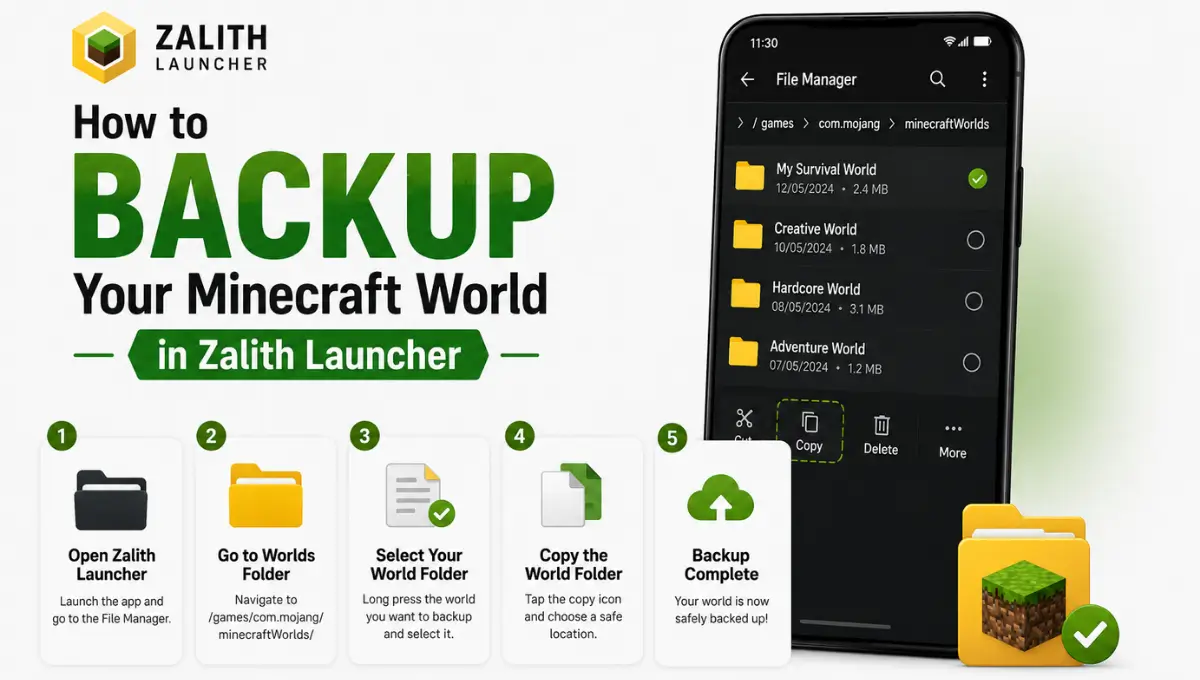
Follow these steps once and it turns into a two minute habit before every risky change you make to your setup.
Close Minecraft completely
Make sure the game is fully closed before copying anything. Copying a world while it is still open can leave the backup with unsaved or corrupted chunk data.
Open the built-in file manager
From the Zalith Launcher home screen, tap the file manager icon to browse your game directory without needing a third party app.
Navigate to the saves folder
Head into .minecraft, then saves. Every world you have created will appear here as its own separate folder, named exactly as you titled it in game.
Copy the world folder, do not move it
Long press the folder and choose copy rather than cut, so your active world stays untouched inside the saves folder while a duplicate is created elsewhere.
Paste it into a separate backup location
Paste the copied folder into a dedicated backup directory outside of .minecraft, ideally on external storage, a PC, or a cloud drive rather than inside the same folder.
Label it with the date
Rename the copied folder to include today’s date, such as MyWorld_2026_08_01, so old backups do not get confused with newer ones later on.
Habits That Actually Protect Your World
Mistakes That Cost People Their Worlds
Zalith Launcher Backup Methods, Compared
None of these methods are wrong, they simply fit different situations depending on how much time and storage you are willing to use.
| Method | Speed | Reliability | Best For |
|---|---|---|---|
| File manager copy paste | Fast | Good, if the phone survives | Quick backups between mod installs |
| USB transfer to PC | Moderate | Very high, no Android limits | Long term safe storage off the phone |
| Cloud upload | Depends on internet speed | High, protected from device loss | Worlds you cannot risk losing |
| SD card copy | Fast | High, removable from the device | Players already using external storage |
| Automatic backup tools | Instant, runs in background | High, but depends on setup | Frequent players who forget manual backups |
Once version isolation is enabled, each Minecraft version stores its saves inside its own versions folder rather than the shared saves folder, so back up the correct path for whichever version you are actually playing.
Uninstalling Zalith Launcher, or a factory reset, wipes its entire game directory including every world inside it, so a backup stored only on the same device offers no real protection.
Zalith Launcher Restoring a World From a Backup
Restoring works exactly in reverse, and it is just as simple once you know the destination folder. Copy your backed up world folder back into .minecraft, then saves, making sure Minecraft is fully closed while you do it.
If a world with the same name already exists and is the corrupted or unwanted version, delete that folder first rather than pasting on top of it, since merging two saves with the same name can leave the game reading a mix of old and new files. A clean folder swap avoids that entirely.
Players using version isolation need to restore into the matching version folder instead of the shared saves directory, since each isolated version only looks inside its own copy. Check which version you were playing when the backup was made and place the world inside that specific versions subfolder.
Once the folder is back in place, launch Minecraft and the world should appear under Singleplayer exactly as it was the moment the backup was taken, with all progress, builds, and inventory intact.
Fixing the Problems People Actually Run Into
Most backup related problems come down to a handful of predictable causes, and once you understand the folder structure, the fix is almost always simple.
A restored world not appearing under Singleplayer usually means it was placed in the wrong saves folder, most often the shared one when version isolation is actually turned on. Confirm which folder your active version reads from before assuming the backup itself is broken.
A world that loads but is missing recent progress typically means the backup was taken before those changes happened, not that anything went wrong during the copy. This is exactly why dating your backup folders matters, so you always know which copy is the most recent.
Copy operations that fail partway through are almost always a storage space issue on Android. Check how much free space remains on your device or SD card before attempting to copy a large world folder.
A backup that seems to disappear after an app uninstall is expected behavior, not a bug, since uninstalling any app on Android removes its entire data folder including anything stored inside it. Always keep backups outside the launcher’s own storage.
FAQs
Quick answers to the questions that come up most about backing up worlds in Zalith Launcher.
Conclusion
Backing up a Minecraft world is one of those habits that feels unnecessary right up until the moment it saves you completely. Once you know that a world is simply a self contained folder sitting inside saves, the whole process becomes a two minute copy and paste rather than something to dread or put off.
The method you choose matters less than the habit itself. A quick copy to external storage before every mod install, paired with an occasional full transfer to a PC or cloud drive, covers almost every way a world can be lost, from a bad update to a factory reset nobody saw coming.
Version isolation adds one extra detail worth remembering, but once you know which folder your active version actually reads from, backing up and restoring both stay exactly as simple as they were before. Build the habit once, and Zalith Launcher will never cost you a world you were not ready to lose.